

Overview
The Scans section is where you execute and manage security scans in WAS.It provides visibility into scan execution status, applied rules, progress, and discovered vulnerabilities.
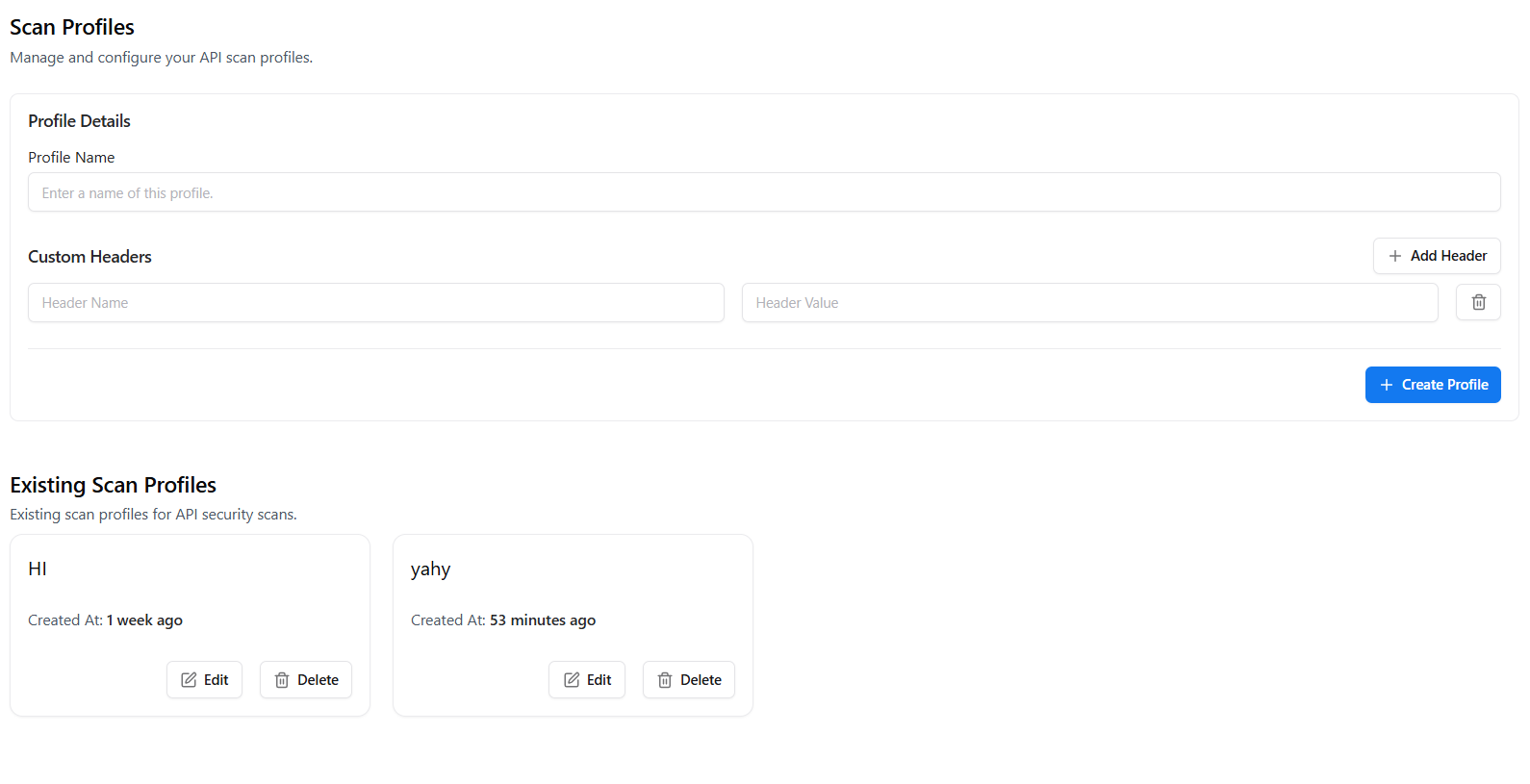
Scans Overview
The Scans Overview lists all scans executed in the workspace with real-time status and results. Each scan entry displays:- Scan Name — User-defined identifier
- Status — Completed or in-progress
- Rules — Number of rules applied
- Progress — Requests processed vs total
- Vulnerabilities — Severity-wise breakdown (C / H / M / L)
- Actions — Re-run or delete scan
Create Scan
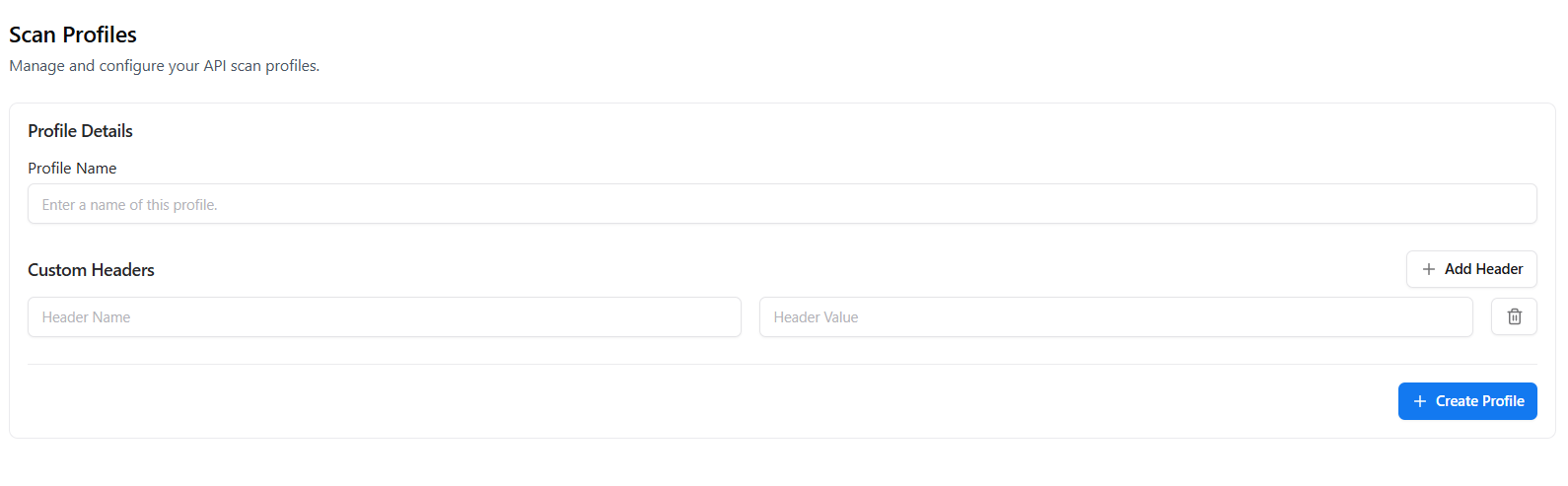
- Name & Description — Identify the scan purpose
- Rules (optional) — Select specific detection rules
- Environments — Choose environment variables for execution
- Collections — Target API collections
- Projects — Associate scan with projects
- Auth Profile — Apply authentication logic
- Scope — Limit scan to specific paths or endpoints
Explore Live Demo
Explore Snapsec Live — No Signup Needed
Jump straight into the live environment and see how Snapsec unifies asset intelligence, threat detection, and vulnerability tracking — all in one dashboard.