

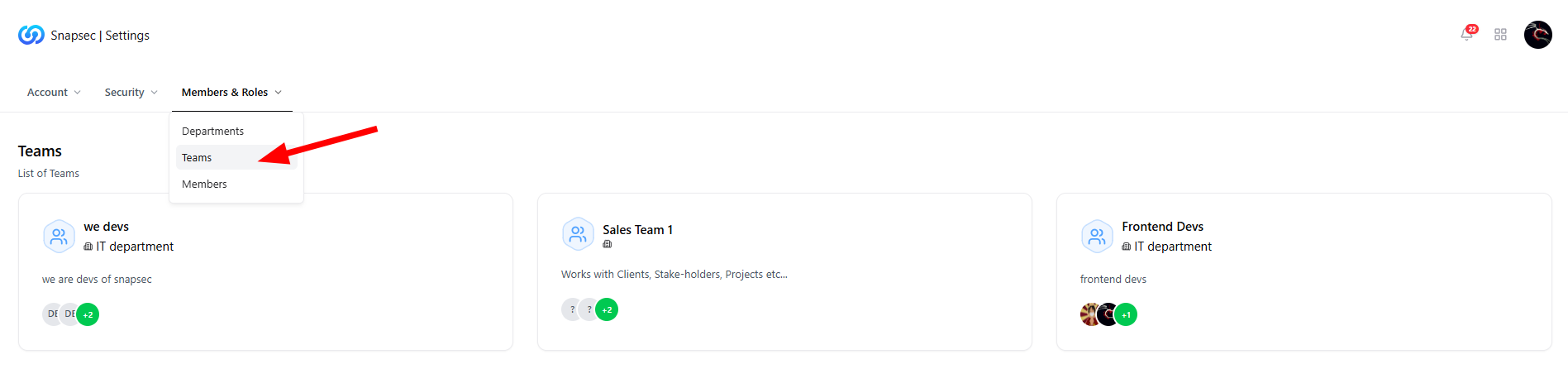
Teams — List of teams across departments
Overview
The Teams module allows organizations to group users into functional units within departments.Teams help define ownership, responsibility, and access boundaries across products, assessments, and workflows. Each team belongs to a department and can have a designated team lead, multiple members, and a clear scope of responsibility.
Teams List
The Teams page displays all teams configured in the organization, along with their department association and member visibility. Each team card shows:- Team name
- Parent department
- Short description
- Member avatars and count
Teams — FAQs
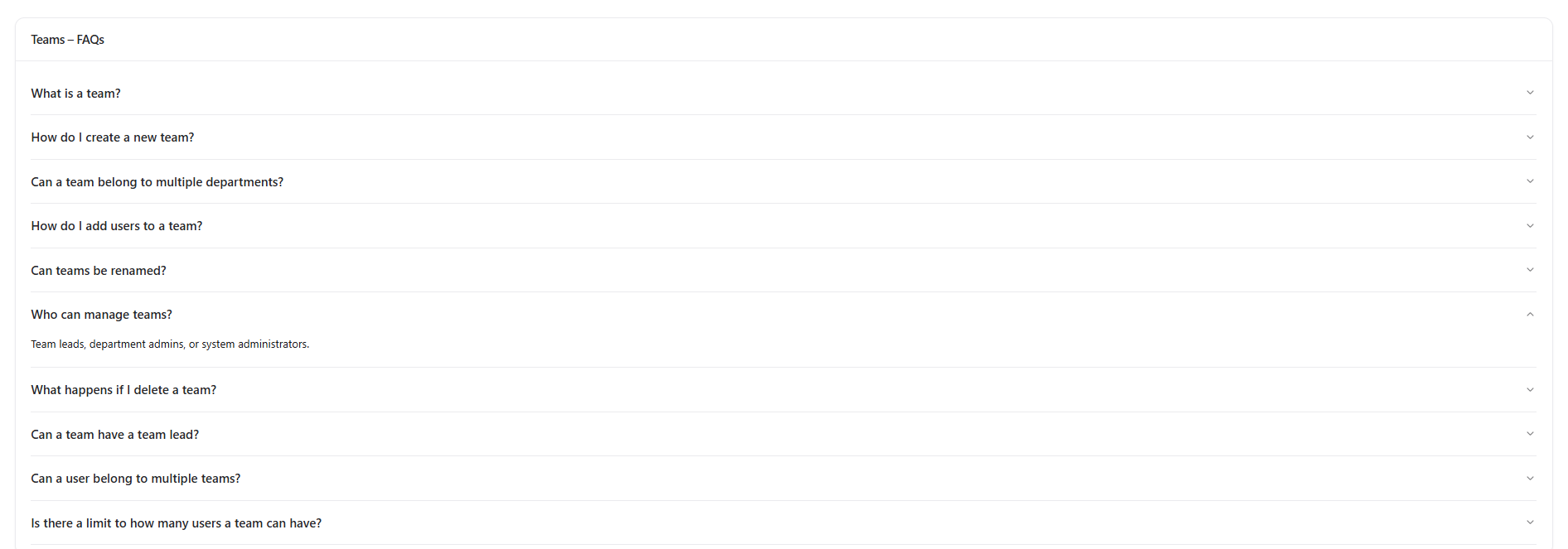
Teams FAQs displayed below the teams list
Common Questions
-
What is a team?
A team is a group of users working together under a department with shared responsibilities. -
How do I create a new team?
Teams are created within a department by authorized administrators or department leads. -
Can a team belong to multiple departments?
No. Each team is associated with a single department to maintain clear ownership. -
Who can manage teams?
Team Leads, Department Admins, and System Administrators. -
Can users belong to multiple teams?
Yes. A user can be part of multiple teams if required.
Viewing a Team
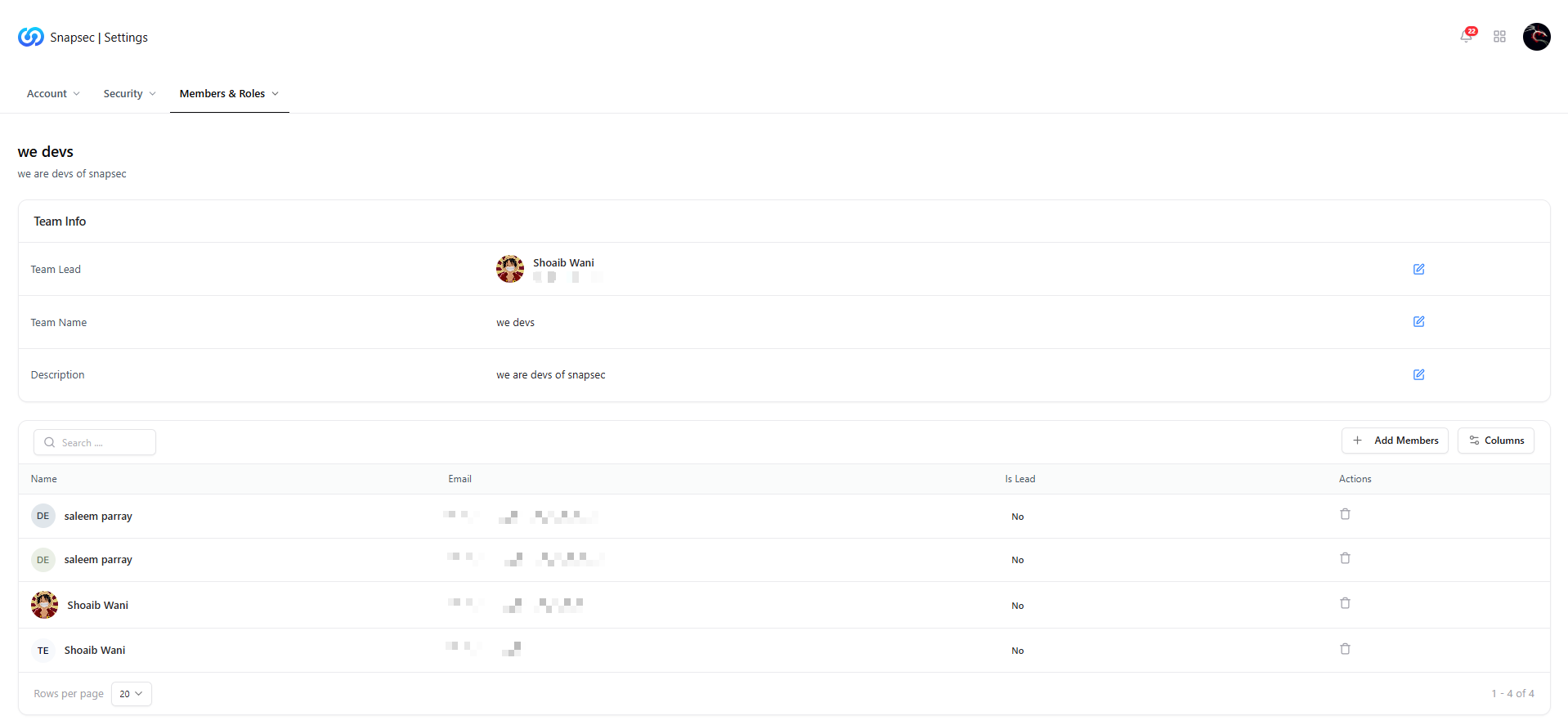
Inside a team — Team information and members list
Team Info Section
This section provides editable metadata about the team:- Team Lead — The primary owner of the team
- Team Name — Display name used across the platform
- Description — Explains the team’s role or responsibility
Team Members
Below the Team Info section is the Members Table, listing all users assigned to the team. Each row displays:- Member name
- Email address
- Lead status
- Actions (remove member)
Adding Members to a Team
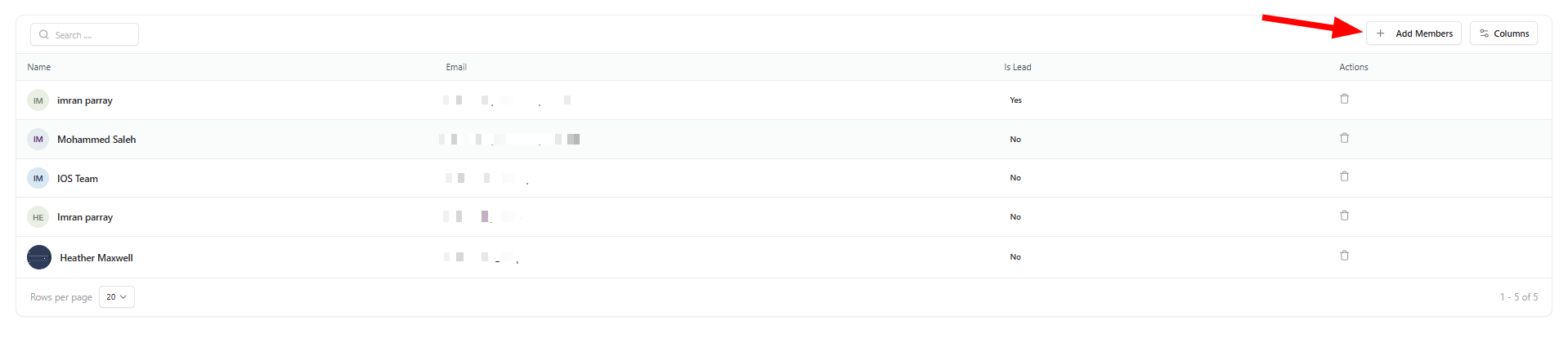
Add members button inside a team
- You can add multiple users at once
- Members immediately inherit team-level access and visibility
- Changes apply across all linked products and workflows
Update Team Members

Update Team Members modal
- Add or remove users using a searchable multi-select
- Review current assignments before saving
- Apply changes instantly across the system
Why This Matters
Teams form the foundation of access control, ownership, and collaboration in Snapsec. By organizing users into teams, organizations can:- Assign responsibility clearly
- Control access at scale
- Align security workflows with real-world team structures
- Maintain clean audit trails and accountability
Explore Live Demo
Explore Snapsec Live — No Signup Needed
Jump straight into the live environment and see how Snapsec manages teams, departments, and access — all from a single control plane.