

Overview
Asset Decommissioning helps you maintain an accurate and clean inventory by retiring assets that are no longer active or relevant.AIM supports both automatic and manual decommissioning — ensuring minimal false positives and maintaining traceability for every change.

Automatic Decommissioning
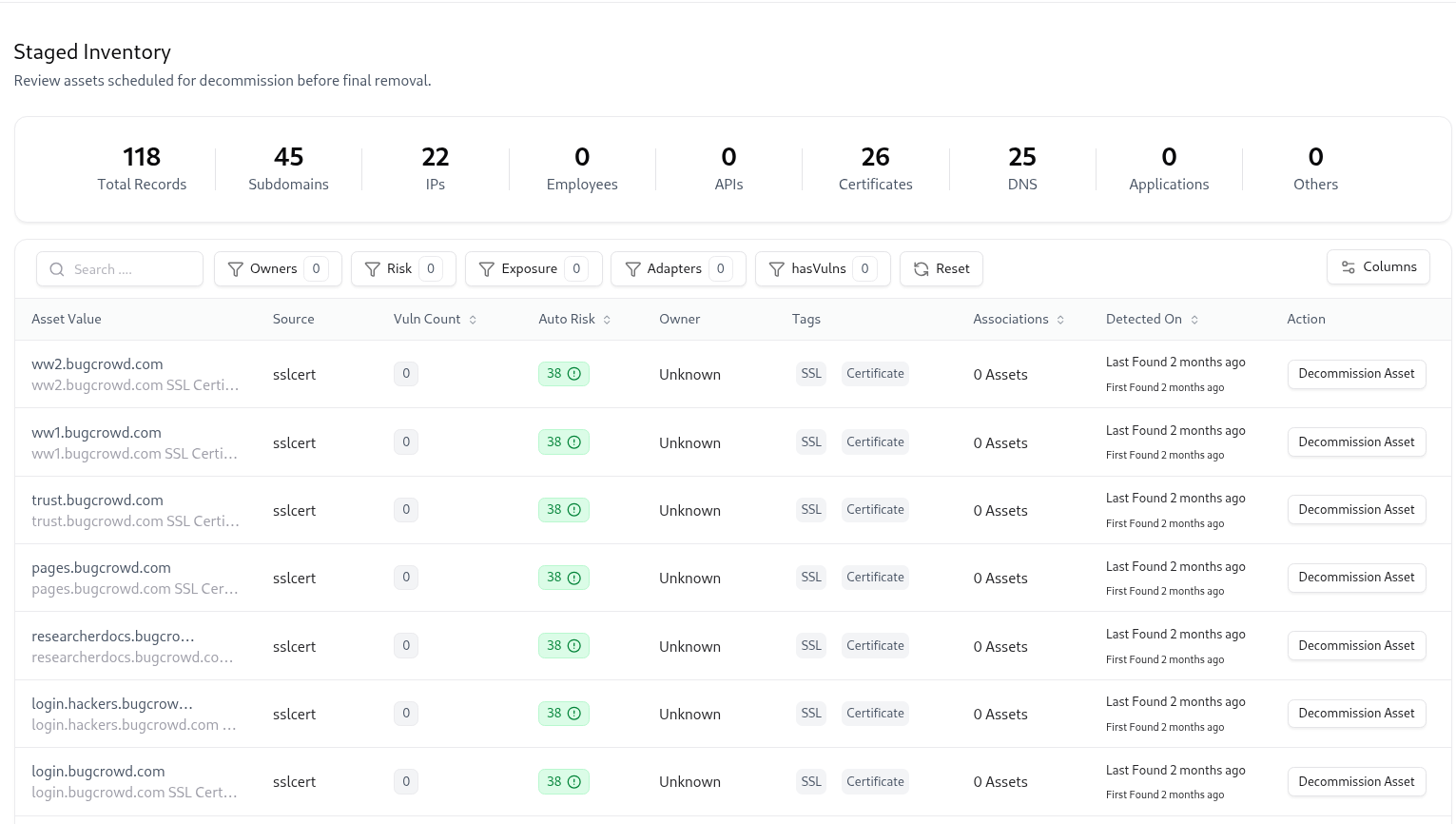
When such assets are found missing, AIM automatically moves them to a Staged state rather than directly decommissioning them. This two-step model reduces false positives and ensures human review before removal.
Workflow
- Adapter Detection — System identifies that an asset (e.g., DNS record, IP, or repo) no longer exists in the source.
- Move to Staged Mode — Asset is marked as Staged for Decommission for review.
- Manual Review & Approval — A user can later confirm decommissioning from the Staged section.
⚙️ Example: If your DNS adapter previously detected api.example.com in Cloudflare, but the record was later removed, it will move to Staged Decommission automatically.
Manual Decommissioning
This is typically done when teams know a resource is intentionally removed, outdated, or migrated.
Steps
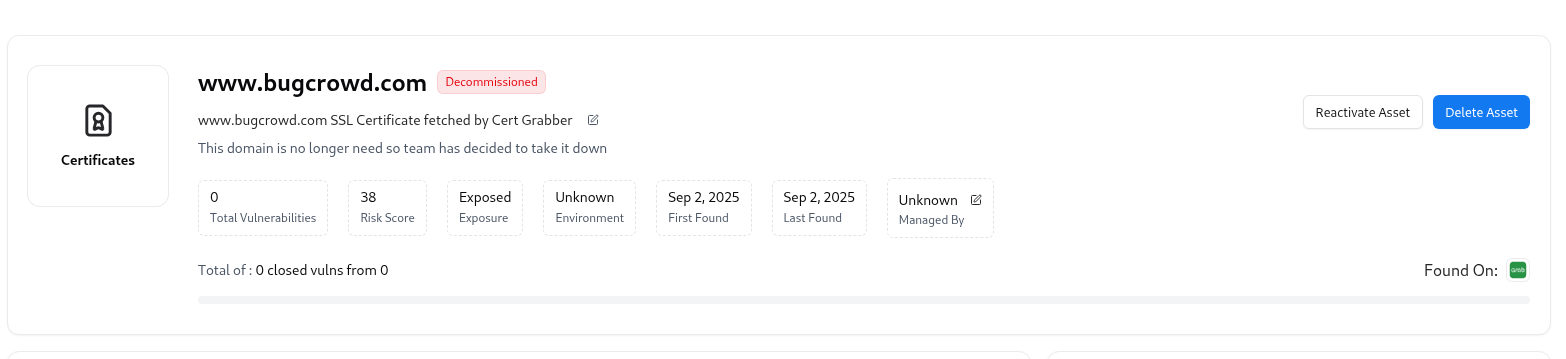
Provide a Reason
Enter a justification for why the asset is being decommissioned (e.g., “This domain is no longer needed and has been taken down.”)
Viewing Decommissioned Assets
The Decommissioned section provides a summary of all retired assets, along with reasons, responsible users, and source adapters.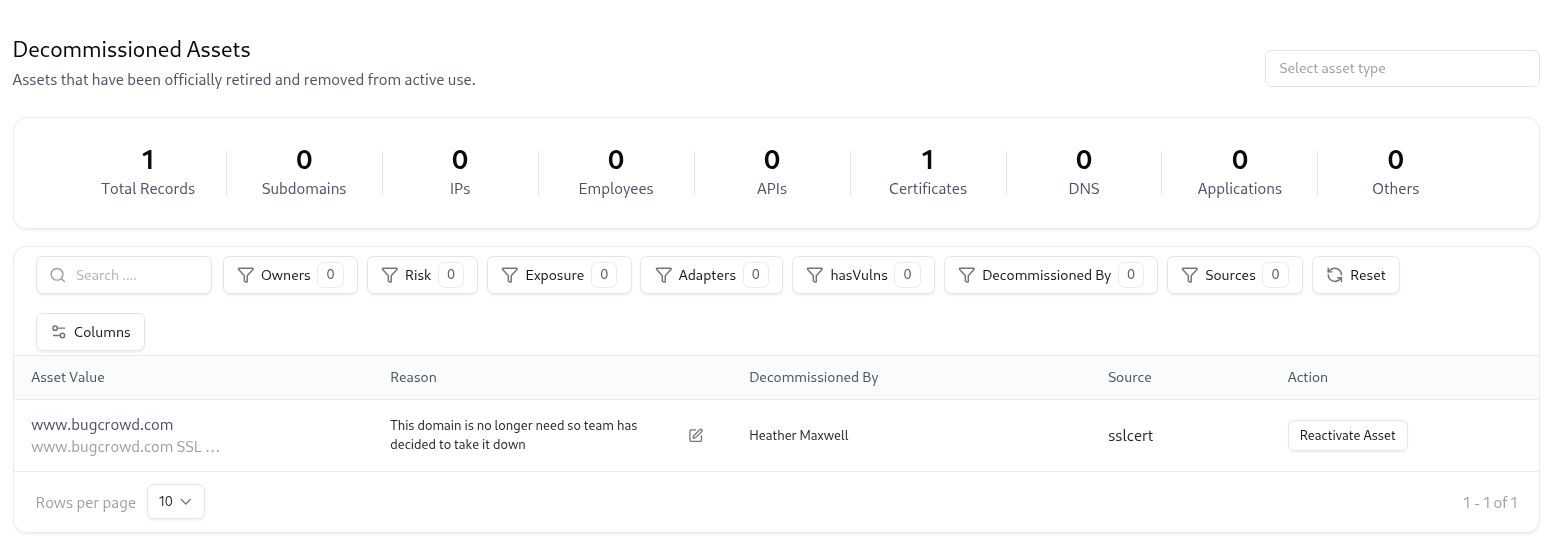
Columns Explained
| Column | Description |
|---|---|
| Asset Value | Name or identifier of the retired asset |
| Reason | Explanation recorded at decommission time |
| Decommissioned By | The user who confirmed the action |
| Source | Adapter or discovery source of the asset |
| Action | Option to Reactivate the asset if needed |
Reactivation Of Decommissioned Assets
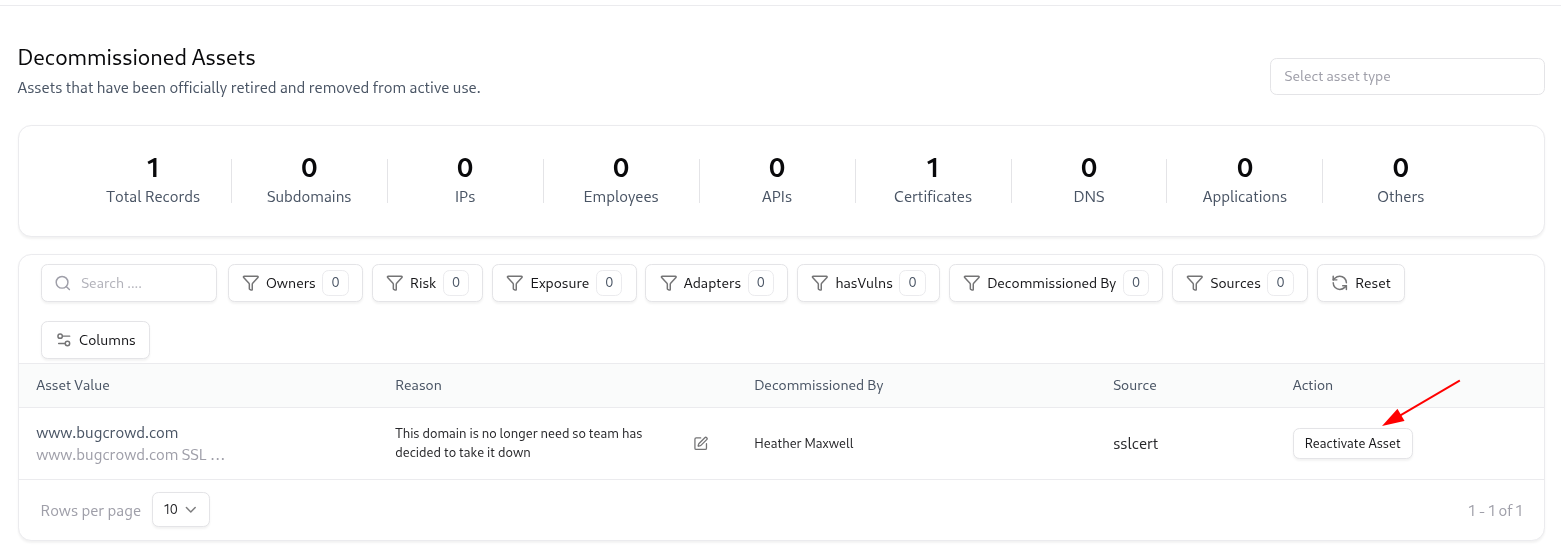
Navigate to Decommissioned Assets
Go to the Decommissioned section from the left sidebar under Assets → Decommissioned.
Locate the Asset
Find the asset you want to restore in the list. You can use filters like Adapter, Risk, or Source for quick lookup.

Best Practices
- Always review Staged assets before confirming decommissioning.
- Record clear reasons for every manual decommission to maintain audit trails.
- Periodically check if any decommissioned assets have resurfaced via integrations.
- Use adapter-driven automation to avoid stale inventory while reducing manual oversight.
Explore Live Demo
Explore AIM Live — No Signup Needed
Instantly explore how Snapsec AIM discovers, enriches, and tracks every asset in real time — all without creating an account.