Scanner Configuration Overview


Overview

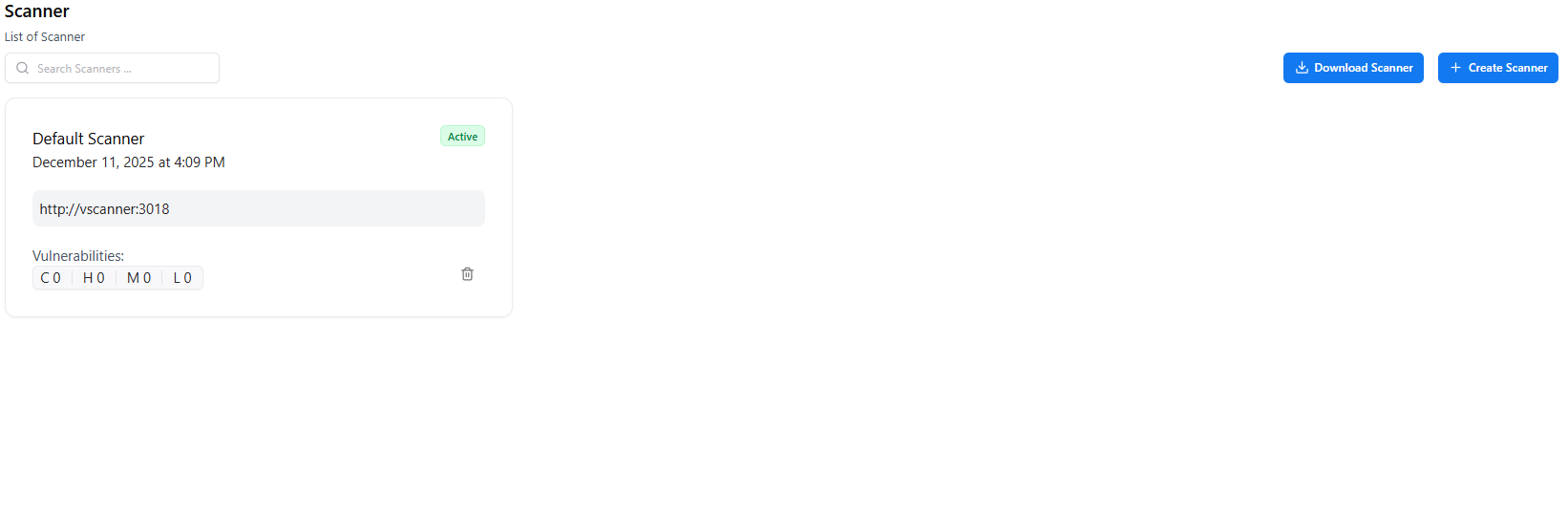
Scanner Configuration provides a unified control panel to:
  • Add and manage scanners
  • Modify detection settings
  • Configure scan thresholds and performance limits
  • Enable or disable scanning engines
  • Customize rulesets for different asset types
  • Monitor scanner health and last activity logs
This gives teams complete flexibility over how and when scanning occurs.

Scanner List & Status

Connected Scanners

Each scanner entry includes:
FieldDescription
Scanner NameUnique identifier for the scanner engine
TypeAPI, Web, Network, Cloud, or Custom Scanner
StatusActive, Idle, or Offline
Last SeenTimestamp of last communication
VersionScanner runtime or engine version
ActionsEdit, Disable, or Remove the scanner
You can quickly detect inactive scanners or outdated engines from this view.

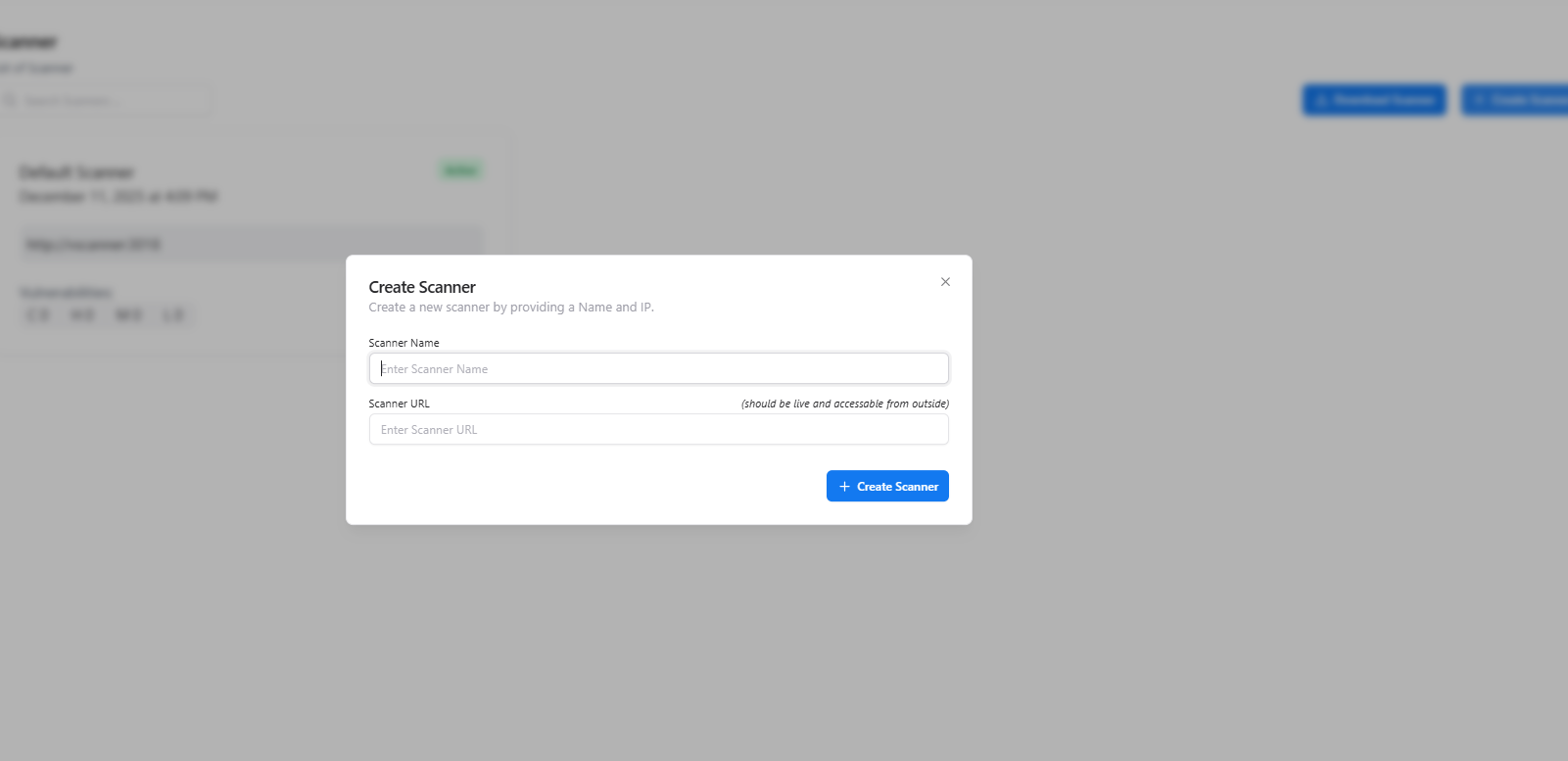
Adding a New Scanner

Open Scanner Configuration

Navigate to Scanner Configuration → Add Scanner.

Select Scanner Type

Choose from API, Web App, Network, Cloud, or Custom scanners.

Provide Connection Details

Enter authentication keys, endpoints, or integration tokens.

Save & Activate

The scanner will register and appear in your active scanner list.

Rule & Detection Settings

Each scanner can be customized to detect different vulnerability classes.

Rule Management

Configurable Parameters Include:

  • OWASP Coverage
  • Scanner Depth / Crawl Limit
  • Rate Limits
  • Timeout Settings
  • Excluded Paths or Endpoints
  • Risk Threshold Filters
  • Signature Packs & Behavioral Detection
These options allow deep tailoring of scan sensitivity and performance.

Performance & Rate Control

You can adjust scanning speed and load impact:
  • Concurrency level
  • Request per second (RPS) caps
  • Network throttling
  • Max threads or parallel jobs
This ensures scans do not overwhelm production systems.

Health Monitoring

Each scanner reports:
  • Uptime
  • Last heartbeat
  • Running jobs
  • Error logs
  • Version mismatches
  • Queued scans

Scanner Health Monitoring

Use this to detect stalled scanners or troubleshoot failed scans immediately.

Actions You Can Perform

Edit Scanner

Update scanner configuration, authentication, or detection rules.

Disable Scanner

Temporarily pause a scanner from executing jobs.

Delete Scanner

Remove unused or deprecated scanners from the system.

Refresh Configuration

Force scanners to reload updated rules and settings instantly.

Best Practices

  • Keep scanners updated to the latest engine version.
  • Disable unused scanners to reduce noise and errors.
  • Use environment-based scanners (e.g., staging-only) to reduce production load.
  • Configure rule packs based on business risk and application type.
  • Monitor scanner health regularly to prevent scanning gaps.

Next Steps

Explore Vulnerability Catalogue

View all vulnerabilities discovered by your configured scanners.