> ## Documentation Index
> Fetch the complete documentation index at: https://docs.snapsec.co/llms.txt
> Use this file to discover all available pages before exploring further.
# Groups
> Organize assets into logical groups for better visibility, ownership, and targeted vulnerability management.
## Overview
Groups allow you to organize assets into meaningful categories such as environments, infrastructure types, or ownership domains.
This enables better visibility, targeted scanning, and more efficient vulnerability management.
***
## Groups Overview
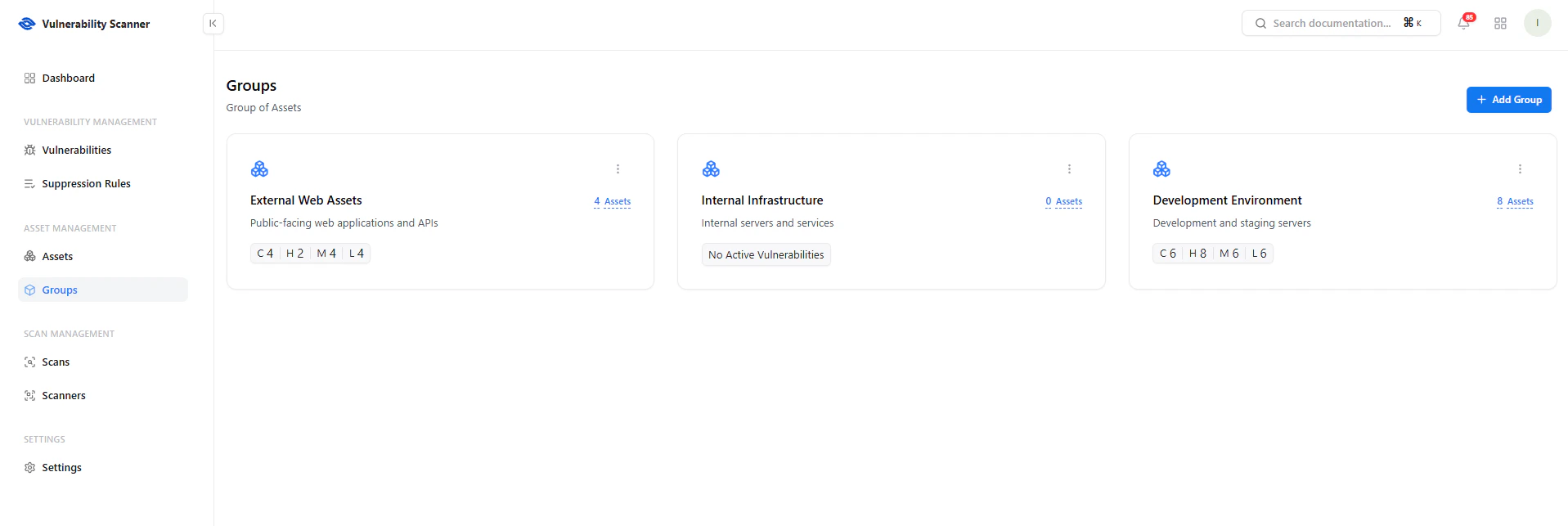 Each group provides a summarized view of its assets and associated vulnerabilities.
### Key Elements
* **Group Name & Description** — Defines the purpose of the group
* **Assets Count** — Number of assets within the group
* **Vulnerability Summary** — Breakdown by severity (Critical, High, Medium, Low)
* **Quick Insights** — Instantly identify high-risk groups
***
## Create a Group
Each group provides a summarized view of its assets and associated vulnerabilities.
### Key Elements
* **Group Name & Description** — Defines the purpose of the group
* **Assets Count** — Number of assets within the group
* **Vulnerability Summary** — Breakdown by severity (Critical, High, Medium, Low)
* **Quick Insights** — Instantly identify high-risk groups
***
## Create a Group
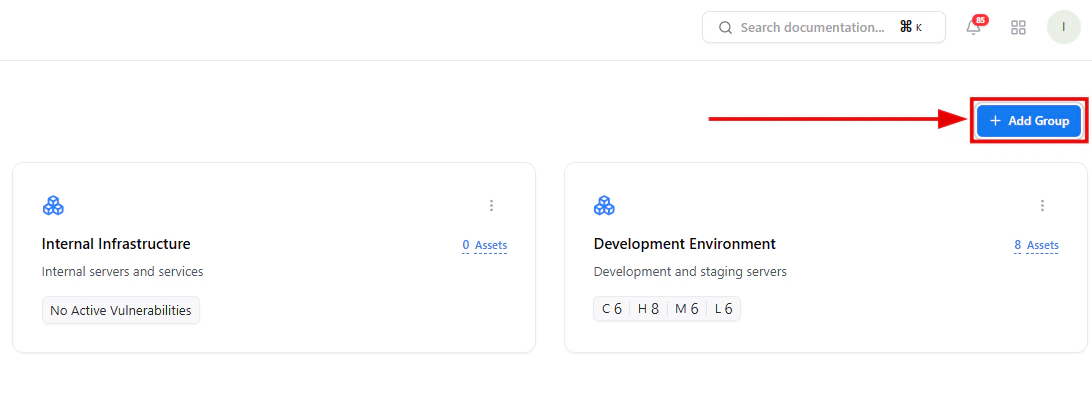 To create a new group:
1. Click **Add Group**
2. Enter group details
3. Save the configuration
***
## Group Creation Modal
To create a new group:
1. Click **Add Group**
2. Enter group details
3. Save the configuration
***
## Group Creation Modal
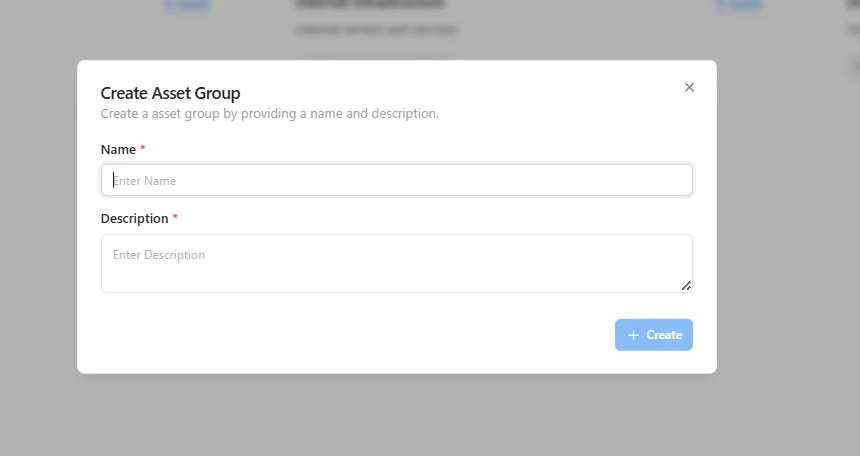 ### Required Fields
* **Name** — Unique group identifier
* **Description** — Purpose or context of the group
Groups should reflect:
* Environment (Prod, Staging, Dev)
* Exposure (External, Internal)
* Ownership (Team-based grouping)
***
## View Group Assets
### Required Fields
* **Name** — Unique group identifier
* **Description** — Purpose or context of the group
Groups should reflect:
* Environment (Prod, Staging, Dev)
* Exposure (External, Internal)
* Ownership (Team-based grouping)
***
## View Group Assets
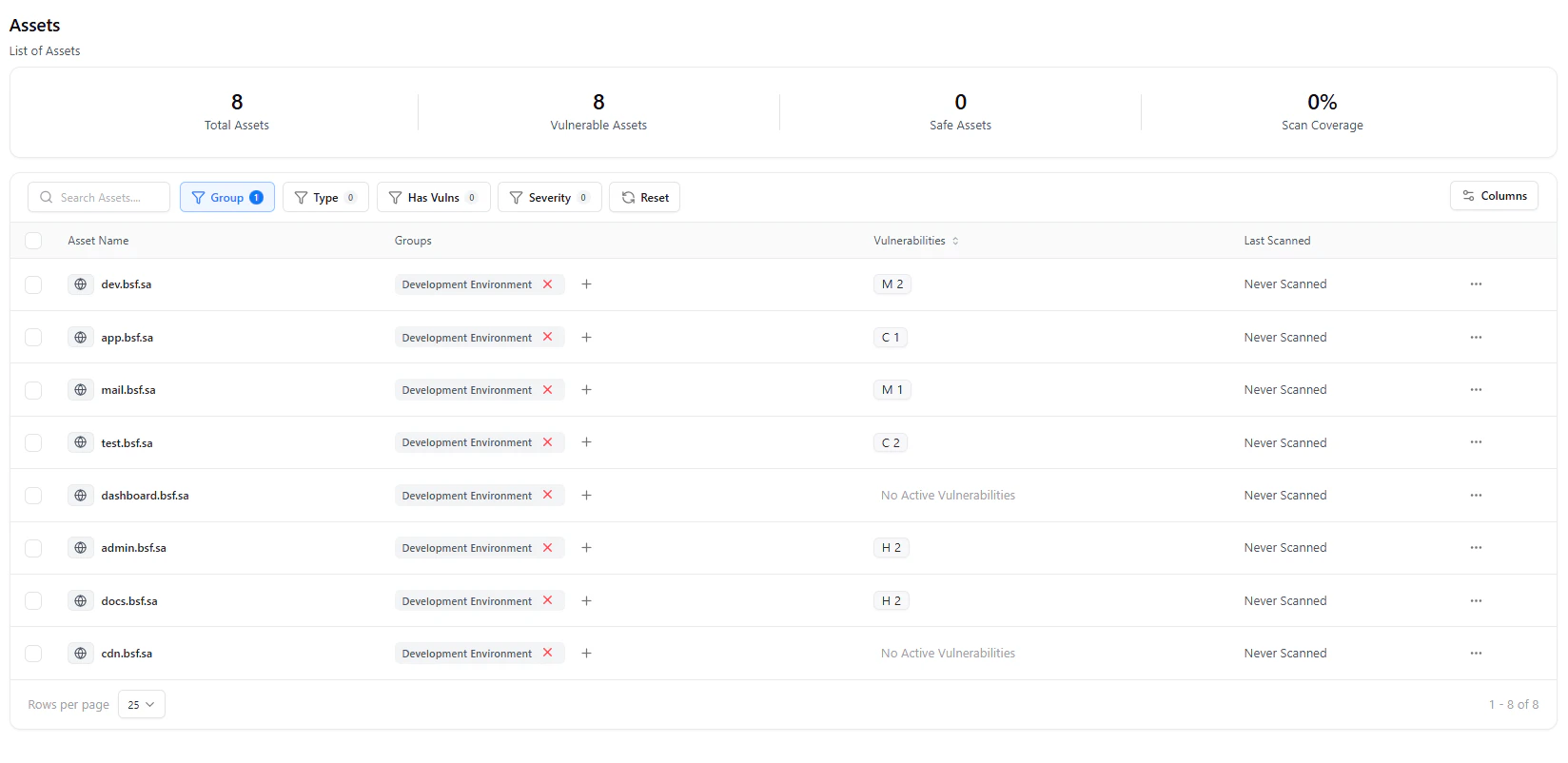 Click on a group to:
* View all assets within that group
* Analyze vulnerabilities specific to that segment
* Track scan status and coverage
***
## Use Cases
* Segment assets by **environment or exposure**
* Assign ownership for **accountability**
* Perform **targeted vulnerability analysis**
* Prioritize remediation by **group risk level**
***
## Why This Matters
* Improves asset organization and clarity
* Enables focused security operations
* Helps prioritize high-risk environments
* Supports scalable vulnerability management
***
## Explore Live Demo
See how Snapsec VS helps you organize assets into groups for better visibility and control.
Click on a group to:
* View all assets within that group
* Analyze vulnerabilities specific to that segment
* Track scan status and coverage
***
## Use Cases
* Segment assets by **environment or exposure**
* Assign ownership for **accountability**
* Perform **targeted vulnerability analysis**
* Prioritize remediation by **group risk level**
***
## Why This Matters
* Improves asset organization and clarity
* Enables focused security operations
* Helps prioritize high-risk environments
* Supports scalable vulnerability management
***
## Explore Live Demo
See how Snapsec VS helps you organize assets into groups for better visibility and control.