> ## Documentation Index
> Fetch the complete documentation index at: https://docs.snapsec.co/llms.txt
> Use this file to discover all available pages before exploring further.
# Vulnerability Ownership
> Assign, manage, and track vulnerability ownership across assessments and teams for better accountability and faster remediation.
 ## Overview
The **Vulnerability Ownership** feature brings clarity and accountability to your remediation workflow.\
It lets you **assign specific vulnerabilities to owners**, **invite collaborators** to assessments, and **filter findings** by responsible users — ensuring that each issue has a clear point of contact for resolution.
***
## Value
Ensure every vulnerability has a responsible owner for faster and transparent remediation.
Collaborate across security and engineering teams directly within assessments.
Filter, track, and monitor vulnerability ownership across teams and reports.
Ownership details automatically feed into SLA and Change Management metrics.
***
## Inviting or Removing Members from an Assessment
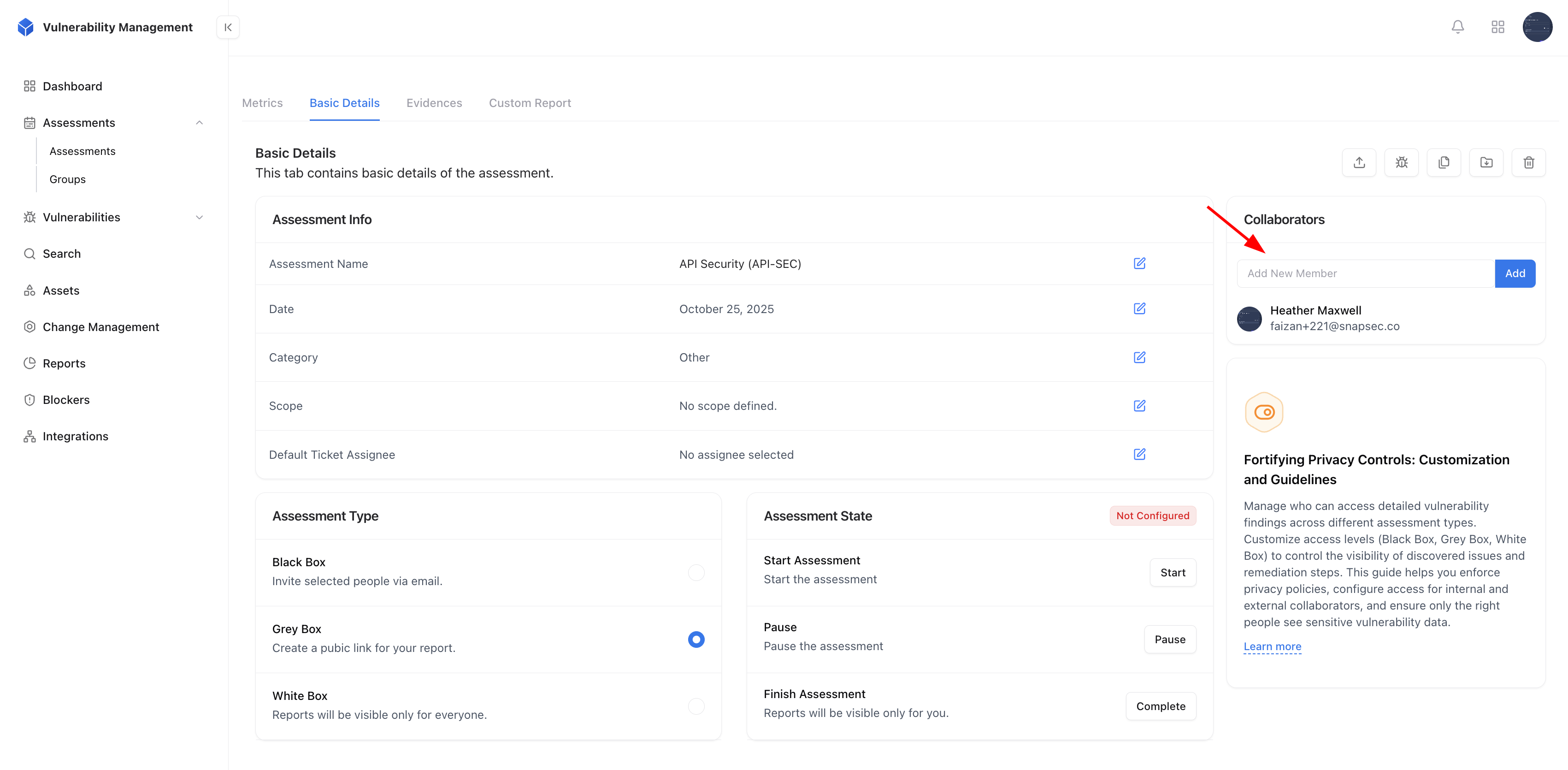
Collaborators can be added or removed from any assessment to manage visibility and responsibilities efficiently.
Navigate to the **Basic Details** tab of an assessment.
Use the **Add New Member** field to invite team members by their email.\
Added members gain access to view and manage vulnerabilities in that assessment.
To revoke access, click on the user’s profile and remove them from the collaborator list.
***
## Assigning a Vulnerability to an Owner
Every vulnerability can be directly assigned to a team member or developer, defining responsibility for its remediation.
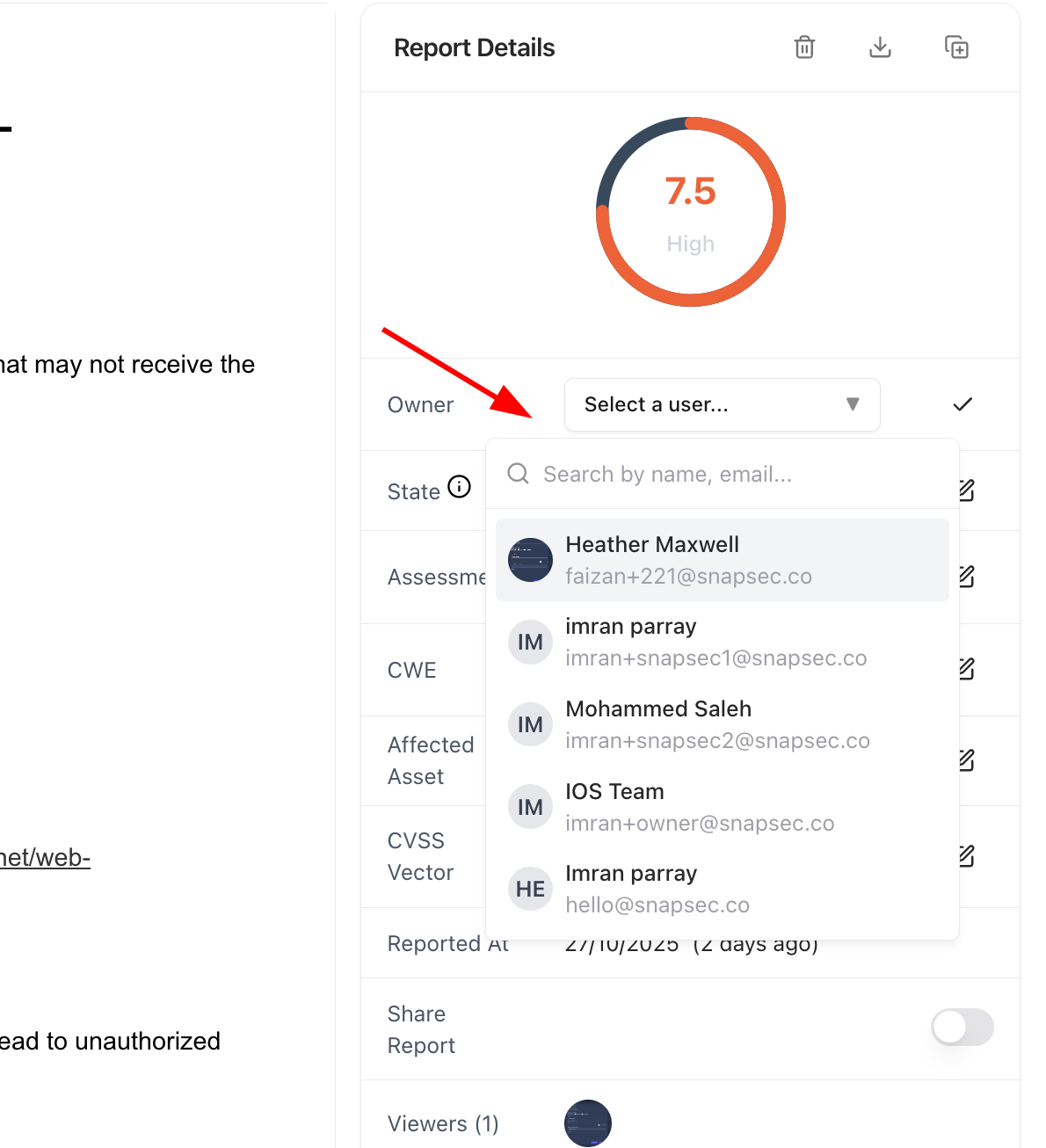
Select a vulnerability from the list to view its **Report Details**.
Use the **Owner** dropdown to search and select a user. Once assigned, the user becomes responsible for resolving that issue.
Ownership is reflected in SLA Analytics, Violations, and Change Management dashboards for consistent performance tracking.
## Overview
The **Vulnerability Ownership** feature brings clarity and accountability to your remediation workflow.\
It lets you **assign specific vulnerabilities to owners**, **invite collaborators** to assessments, and **filter findings** by responsible users — ensuring that each issue has a clear point of contact for resolution.
***
## Value
Ensure every vulnerability has a responsible owner for faster and transparent remediation.
Collaborate across security and engineering teams directly within assessments.
Filter, track, and monitor vulnerability ownership across teams and reports.
Ownership details automatically feed into SLA and Change Management metrics.
***
## Inviting or Removing Members from an Assessment
Collaborators can be added or removed from any assessment to manage visibility and responsibilities efficiently.
Navigate to the **Basic Details** tab of an assessment.
Use the **Add New Member** field to invite team members by their email.\
Added members gain access to view and manage vulnerabilities in that assessment.
To revoke access, click on the user’s profile and remove them from the collaborator list.
***
## Assigning a Vulnerability to an Owner
Every vulnerability can be directly assigned to a team member or developer, defining responsibility for its remediation.
Select a vulnerability from the list to view its **Report Details**.
Use the **Owner** dropdown to search and select a user. Once assigned, the user becomes responsible for resolving that issue.
Ownership is reflected in SLA Analytics, Violations, and Change Management dashboards for consistent performance tracking.
 ***
## Filtering Tickets by Owner
You can easily view and prioritize vulnerabilities based on ownership across assessments.
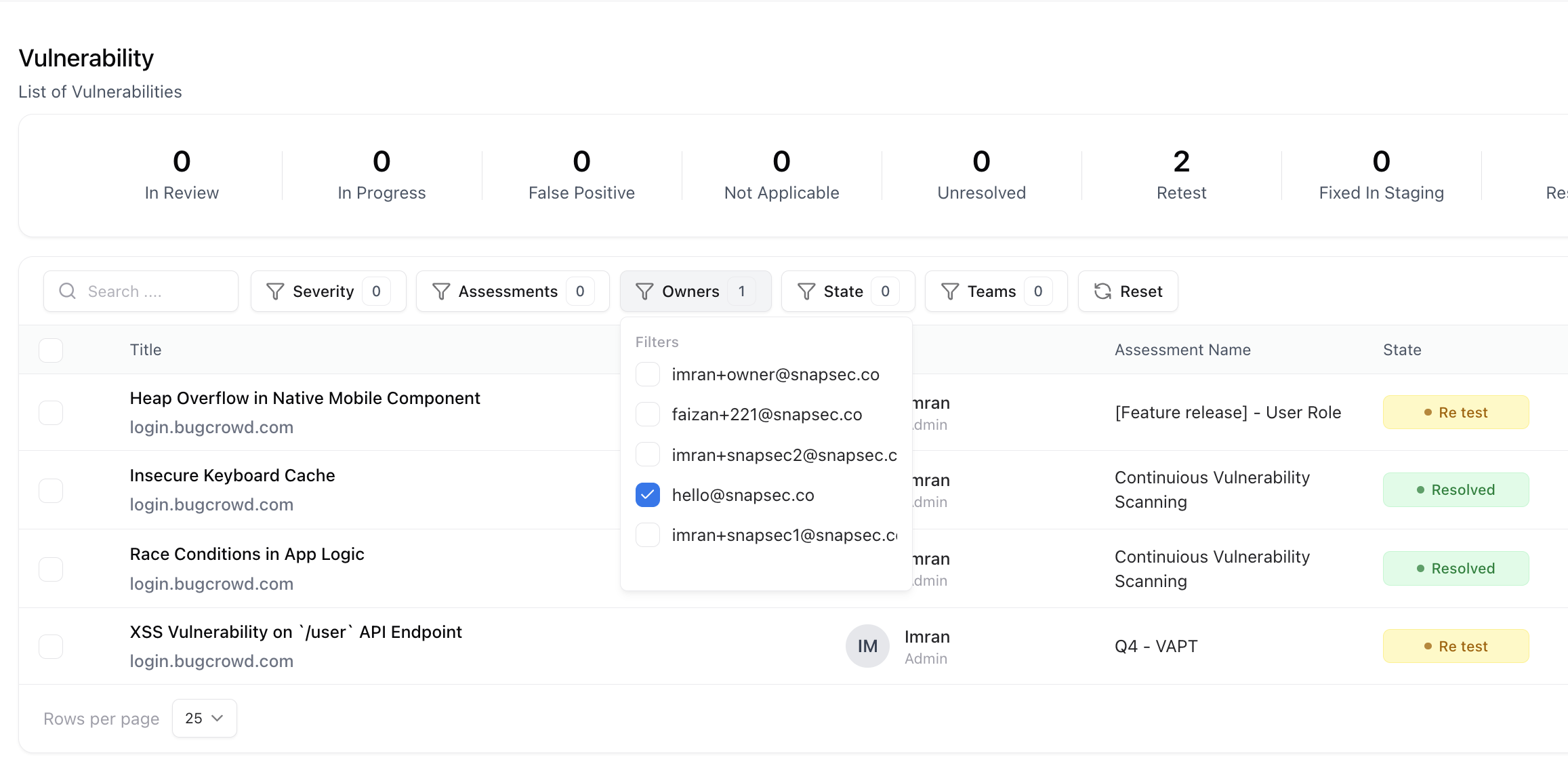
Go to the **Vulnerabilities** section in the VM module.
Use the **Owner filter** to view vulnerabilities assigned to specific users or teams.
Combine filters such as **Severity**, **State**, and **Assessment** to refine your search further.
***
## Filtering Tickets by Owner
You can easily view and prioritize vulnerabilities based on ownership across assessments.
Go to the **Vulnerabilities** section in the VM module.
Use the **Owner filter** to view vulnerabilities assigned to specific users or teams.
Combine filters such as **Severity**, **State**, and **Assessment** to refine your search further.
 ***
## Explore Live Demo
Jump straight into the live environment and see how Snapsec unifies asset intelligence, threat detection, and vulnerability tracking — all in one dashboard.
***
## Explore Live Demo
Jump straight into the live environment and see how Snapsec unifies asset intelligence, threat detection, and vulnerability tracking — all in one dashboard.