> ## Documentation Index
> Fetch the complete documentation index at: https://docs.snapsec.co/llms.txt
> Use this file to discover all available pages before exploring further.
# Workflow Automation
> Automate vulnerability management processes using rule-based workflows that execute actions based on configurable conditions.
# Workflow Automation
Workflow Automation enables organizations to automate repetitive vulnerability management tasks by creating rules that evaluate vulnerability attributes and execute predefined actions. This reduces manual effort, standardizes operational processes, and accelerates remediation workflows.
***
## Automation Rules
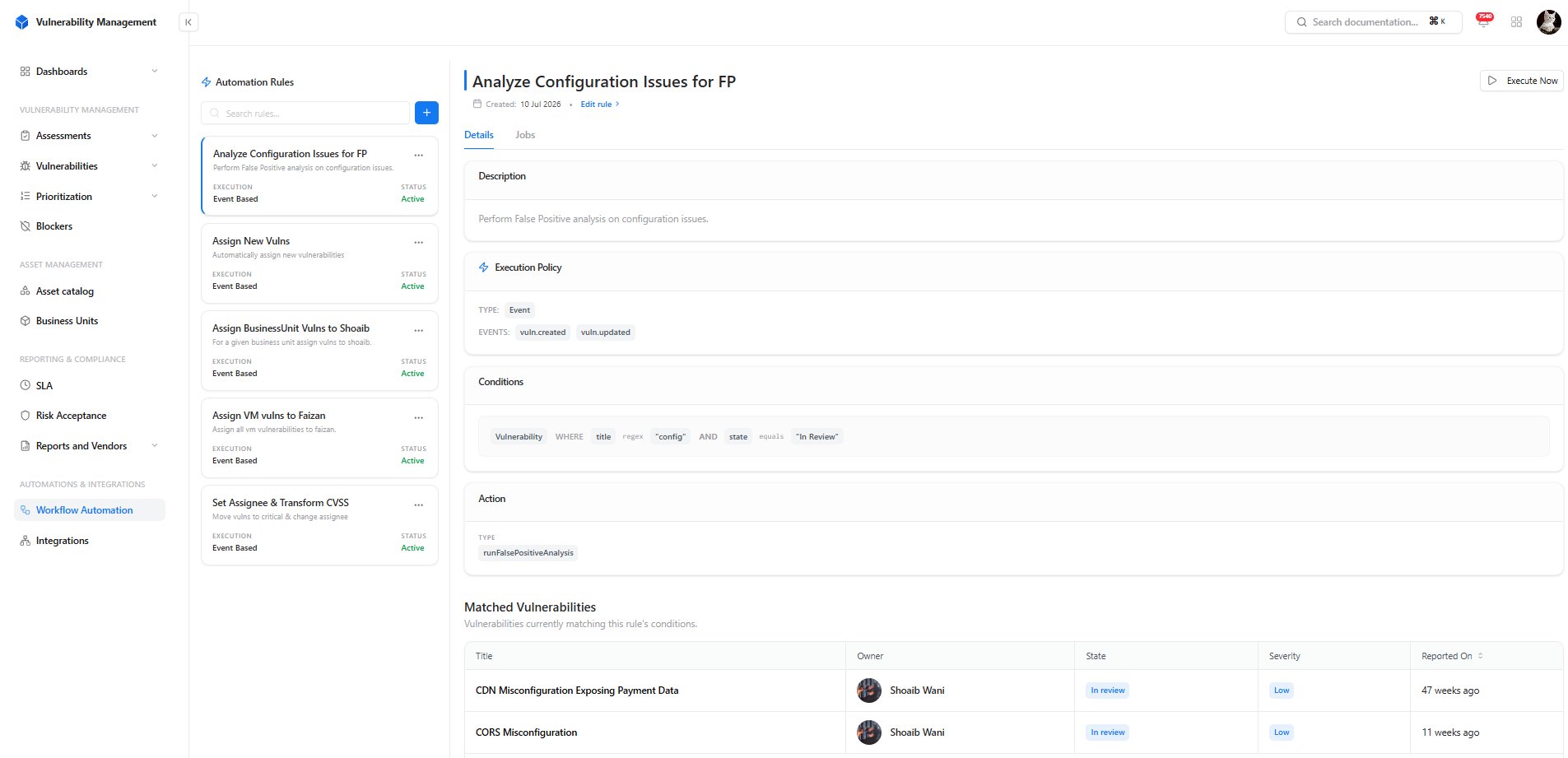 The **Automation Rules** dashboard provides a centralized view of all configured automation workflows. Each rule displays its execution type, status, and purpose, allowing administrators to quickly review and manage automated processes.
To create a new automation rule:
1. Navigate to **Workflow Automation**
2. Click the **+** button.
3. Provide the rule name and description.
4. Configure rule conditions.
5. Define the automation action.
6. Configure the execution policy.
7. Save the rule.
### Rule Components
| Component | Description |
| ---------------- | -------------------------------------------------- |
| Rule Name | Unique identifier for the automation rule. |
| Description | Brief explanation of the rule's purpose. |
| Conditions | Criteria that determine when the rule executes. |
| Action | Operation performed when conditions are satisfied. |
| Execution Policy | Defines when and how the rule is triggered. |
***
## Configure an Automation Rule
The **Automation Rules** dashboard provides a centralized view of all configured automation workflows. Each rule displays its execution type, status, and purpose, allowing administrators to quickly review and manage automated processes.
To create a new automation rule:
1. Navigate to **Workflow Automation**
2. Click the **+** button.
3. Provide the rule name and description.
4. Configure rule conditions.
5. Define the automation action.
6. Configure the execution policy.
7. Save the rule.
### Rule Components
| Component | Description |
| ---------------- | -------------------------------------------------- |
| Rule Name | Unique identifier for the automation rule. |
| Description | Brief explanation of the rule's purpose. |
| Conditions | Criteria that determine when the rule executes. |
| Action | Operation performed when conditions are satisfied. |
| Execution Policy | Defines when and how the rule is triggered. |
***
## Configure an Automation Rule
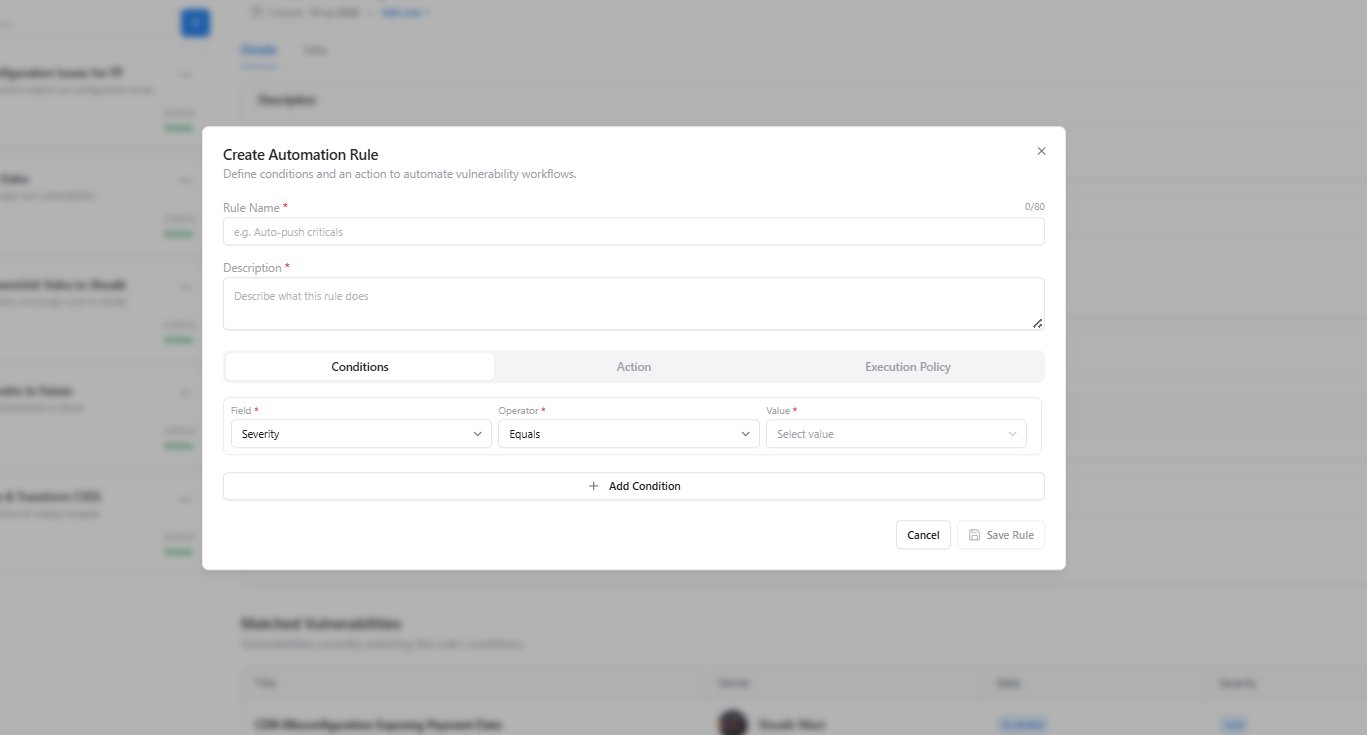 Automation rules are created using three configuration stages:
### Conditions
Specify the vulnerability attributes that must match before the automation executes.
Common condition fields include:
* Severity
* State
* Source
* Category
* Owner
* Business Unit
* Asset Type
### Actions
Define the operation performed after all configured conditions are satisfied.
Examples include:
* Assign vulnerability owner
* Update vulnerability state
* Execute False Positive Analysis
* Modify vulnerability attributes
### Execution Policy
Configure how the rule is triggered.
| Policy | Description |
| ----------- | ------------------------------------------------------------------ |
| Event Based | Executes automatically when configured vulnerability events occur. |
| Manual | Executes only when manually initiated by an administrator. |
Automation rules execute only when all configured conditions evaluate successfully.
***
## Rule Details & Execution History
Automation rules are created using three configuration stages:
### Conditions
Specify the vulnerability attributes that must match before the automation executes.
Common condition fields include:
* Severity
* State
* Source
* Category
* Owner
* Business Unit
* Asset Type
### Actions
Define the operation performed after all configured conditions are satisfied.
Examples include:
* Assign vulnerability owner
* Update vulnerability state
* Execute False Positive Analysis
* Modify vulnerability attributes
### Execution Policy
Configure how the rule is triggered.
| Policy | Description |
| ----------- | ------------------------------------------------------------------ |
| Event Based | Executes automatically when configured vulnerability events occur. |
| Manual | Executes only when manually initiated by an administrator. |
Automation rules execute only when all configured conditions evaluate successfully.
***
## Rule Details & Execution History
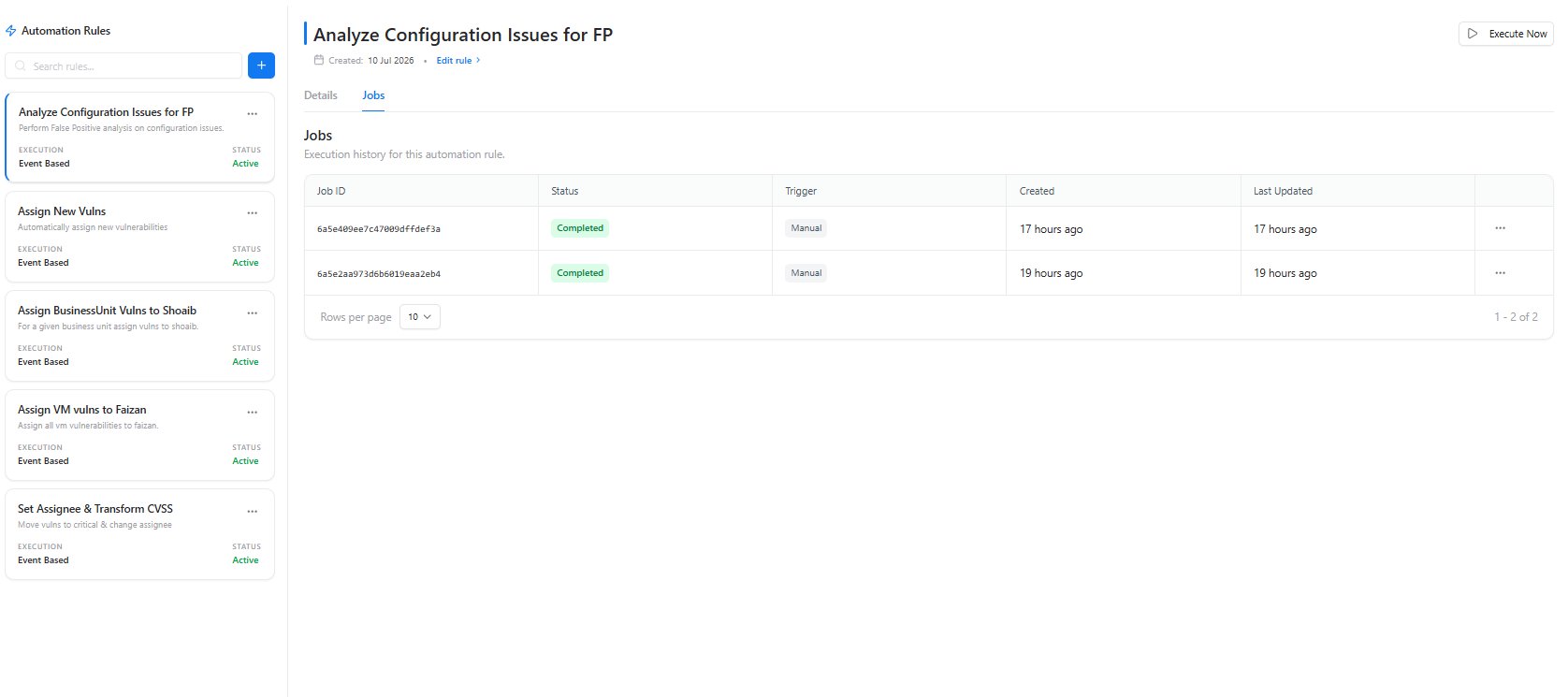 Selecting a rule displays its complete configuration and execution history.
The **Details** tab provides:
* Rule description
* Execution policy
* Trigger events
* Configured conditions
* Configured actions
* Matching vulnerabilities
The **Jobs** tab records every execution of the automation rule, including:
* Job ID
* Execution status
* Trigger type
* Creation time
* Last updated timestamp
This history helps administrators verify successful executions and troubleshoot workflow behavior when necessary.
***
## Execute Automation Rules
Selecting a rule displays its complete configuration and execution history.
The **Details** tab provides:
* Rule description
* Execution policy
* Trigger events
* Configured conditions
* Configured actions
* Matching vulnerabilities
The **Jobs** tab records every execution of the automation rule, including:
* Job ID
* Execution status
* Trigger type
* Creation time
* Last updated timestamp
This history helps administrators verify successful executions and troubleshoot workflow behavior when necessary.
***
## Execute Automation Rules
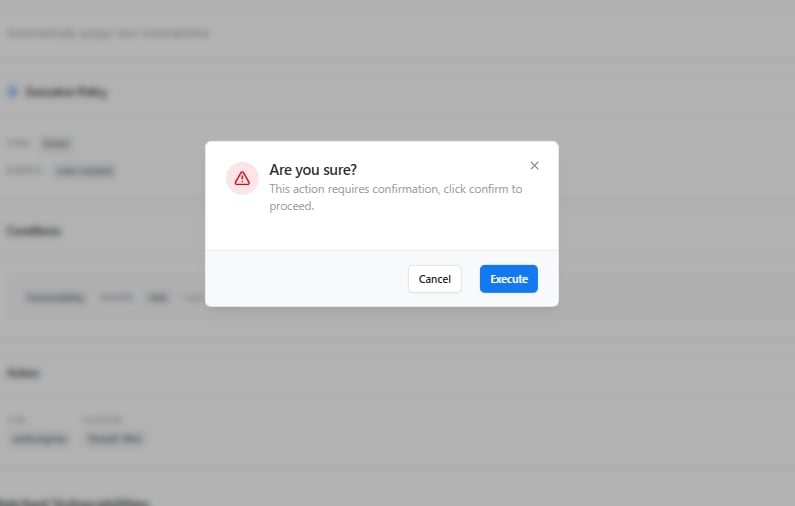 Automation rules configured for manual execution can be started directly from the rule details page using the **Execute Now** option.
Before execution, the platform requests confirmation to prevent accidental workflow execution.
After confirmation, Snapsec:
1. Evaluates the configured rule conditions.
2. Identifies matching vulnerabilities.
3. Executes the configured actions.
4. Records the execution as a job for auditing and tracking.
***
## Why Workflow Automation Matters
Workflow Automation helps organizations standardize vulnerability management by reducing repetitive manual tasks and ensuring security processes are executed consistently.
### Benefits
* Faster vulnerability remediation
* Reduced operational overhead
* Consistent security workflows
* Automated policy enforcement
* Complete execution history and auditability
***
## Explore Live Demo
Discover how Snapsec automates vulnerability management through configurable rules, intelligent execution policies, and workflow-driven actions that reduce manual effort and improve operational efficiency.
Automation rules configured for manual execution can be started directly from the rule details page using the **Execute Now** option.
Before execution, the platform requests confirmation to prevent accidental workflow execution.
After confirmation, Snapsec:
1. Evaluates the configured rule conditions.
2. Identifies matching vulnerabilities.
3. Executes the configured actions.
4. Records the execution as a job for auditing and tracking.
***
## Why Workflow Automation Matters
Workflow Automation helps organizations standardize vulnerability management by reducing repetitive manual tasks and ensuring security processes are executed consistently.
### Benefits
* Faster vulnerability remediation
* Reduced operational overhead
* Consistent security workflows
* Automated policy enforcement
* Complete execution history and auditability
***
## Explore Live Demo
Discover how Snapsec automates vulnerability management through configurable rules, intelligent execution policies, and workflow-driven actions that reduce manual effort and improve operational efficiency.