> ## Documentation Index
> Fetch the complete documentation index at: https://docs.snapsec.co/llms.txt
> Use this file to discover all available pages before exploring further.
# Assessment Groups
> Organize and manage assessments using folders for better structure, tracking, and navigation.
## Overview
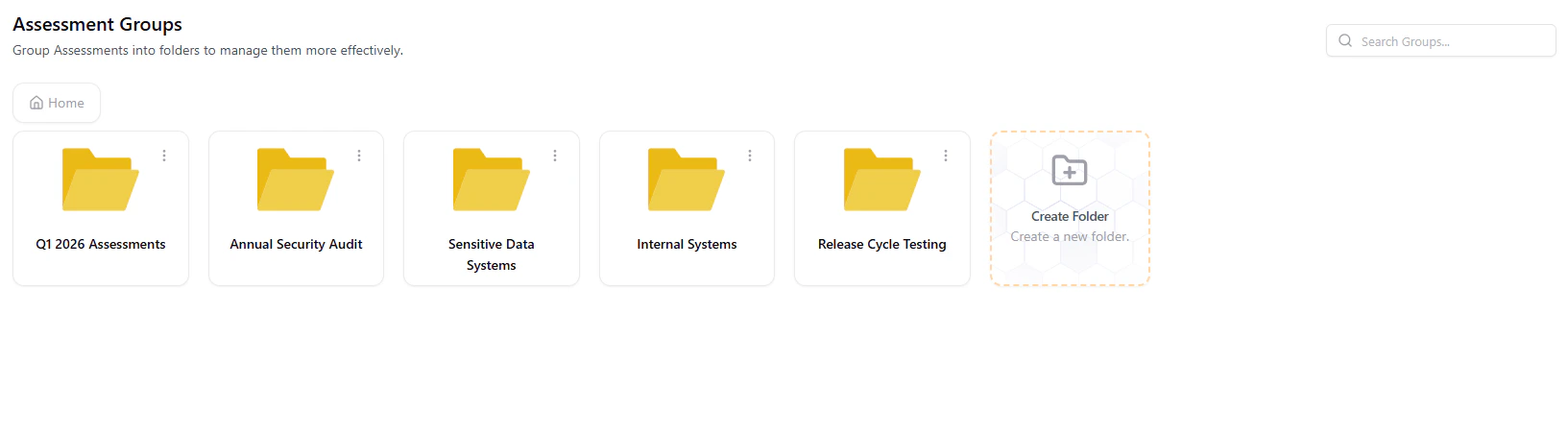 **Assessment Groups** help you organize multiple assessments into structured folders.\
This makes it easier to manage large volumes of security testing across different projects, teams, or environments.
Instead of handling assessments individually, you can group them logically — improving visibility, navigation, and reporting.
***
## What You Can Do
* **Organize Assessments**
* Group related assessments by project, business unit, or testing type
* **Simplify Navigation**
* Quickly access relevant assessments without scrolling through long lists
* **Improve Tracking**
* Monitor multiple assessments within a single context
***
## Creating a Folder
**Assessment Groups** help you organize multiple assessments into structured folders.\
This makes it easier to manage large volumes of security testing across different projects, teams, or environments.
Instead of handling assessments individually, you can group them logically — improving visibility, navigation, and reporting.
***
## What You Can Do
* **Organize Assessments**
* Group related assessments by project, business unit, or testing type
* **Simplify Navigation**
* Quickly access relevant assessments without scrolling through long lists
* **Improve Tracking**
* Monitor multiple assessments within a single context
***
## Creating a Folder
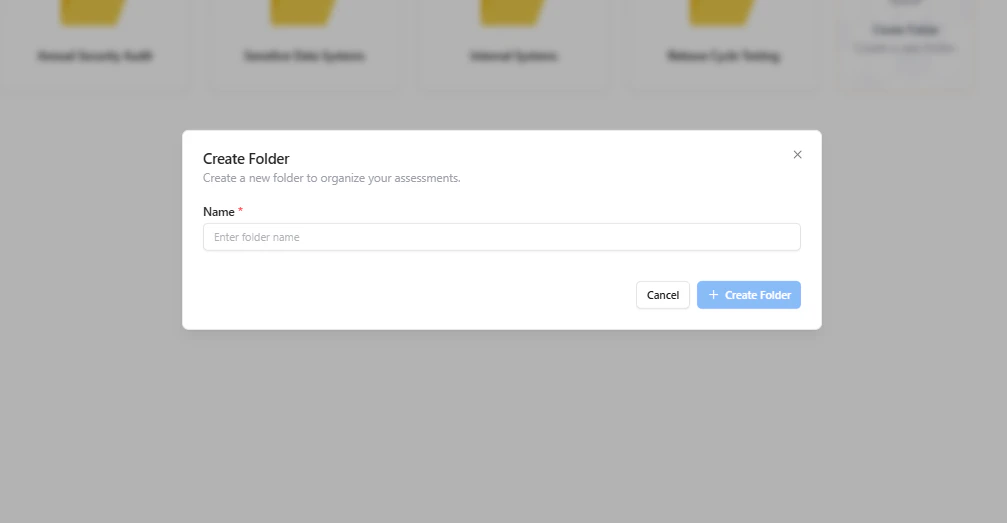 Select **Create Folder** from the Assessment Groups page.
Provide a meaningful name (e.g., *Q1 2026 Assessments*, *Critical Assets*).
Click **Create Folder** to add it to your workspace.
***
## Managing Folders
Select **Create Folder** from the Assessment Groups page.
Provide a meaningful name (e.g., *Q1 2026 Assessments*, *Critical Assets*).
Click **Create Folder** to add it to your workspace.
***
## Managing Folders
 * **Rename Folder**
* Update folder names as projects evolve
* **Delete Folder**
* Remove folders that are no longer needed
Deleting a folder does not remove the assessments inside it — they remain available in the main assessment list.
***
## Adding Assessments to a Folder
* **Rename Folder**
* Update folder names as projects evolve
* **Delete Folder**
* Remove folders that are no longer needed
Deleting a folder does not remove the assessments inside it — they remain available in the main assessment list.
***
## Adding Assessments to a Folder
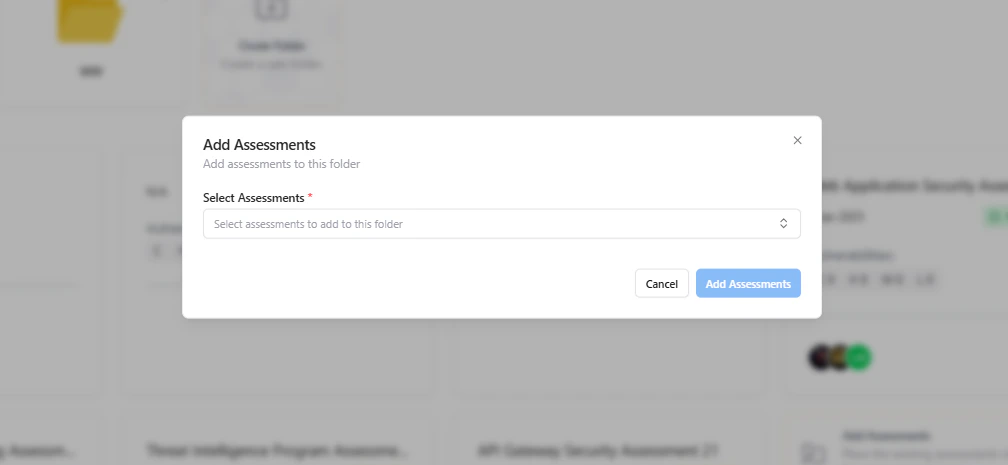 Click on the folder where you want to add assessments.
Use the **Add Assessments** option inside the folder.
Choose one or more assessments from the dropdown list.
Click **Add Assessments** to link them to the folder.
***
## Inside a Folder
Click on the folder where you want to add assessments.
Use the **Add Assessments** option inside the folder.
Choose one or more assessments from the dropdown list.
Click **Add Assessments** to link them to the folder.
***
## Inside a Folder
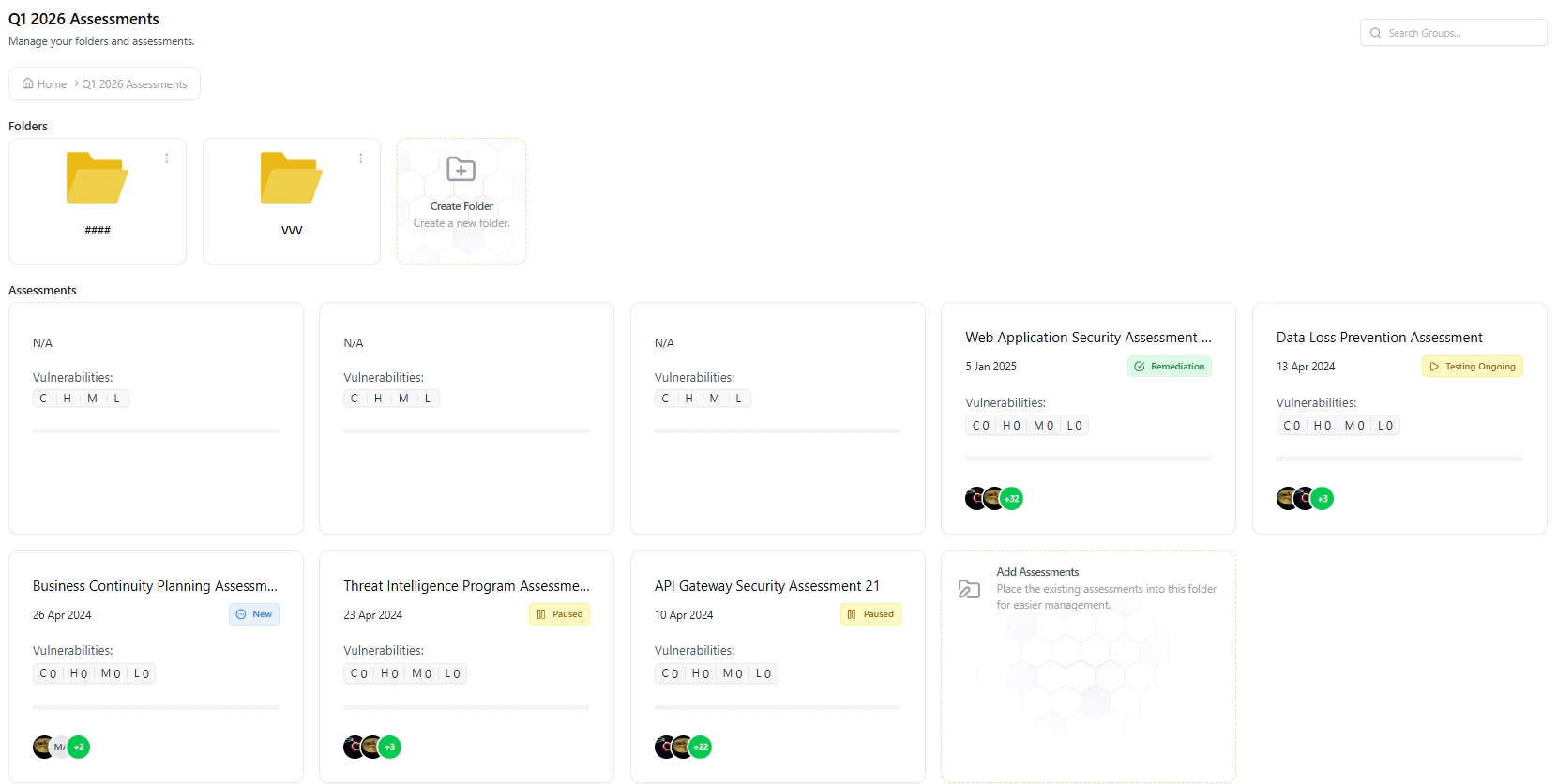 Inside a folder, you can:
* View all grouped assessments in one place
* Track their status and progress
* Add more assessments anytime
* Organize further using sub-folders (if applicable)
***
## Why It Matters
Assessment Groups bring structure to your vulnerability management process.
They help you:
* Manage multiple assessments efficiently
* Maintain clarity across teams and projects
* Improve reporting and organization at scale
***
## Explore Live Demo
Experience how Snapsec organizes and manages assessments at scale using structured grouping.
Inside a folder, you can:
* View all grouped assessments in one place
* Track their status and progress
* Add more assessments anytime
* Organize further using sub-folders (if applicable)
***
## Why It Matters
Assessment Groups bring structure to your vulnerability management process.
They help you:
* Manage multiple assessments efficiently
* Maintain clarity across teams and projects
* Improve reporting and organization at scale
***
## Explore Live Demo
Experience how Snapsec organizes and manages assessments at scale using structured grouping.