> ## Documentation Index
> Fetch the complete documentation index at: https://docs.snapsec.co/llms.txt
> Use this file to discover all available pages before exploring further.
# Exposures
> View, triage, and manage all security exposures automatically detected from your attack surface scans.
## Overview
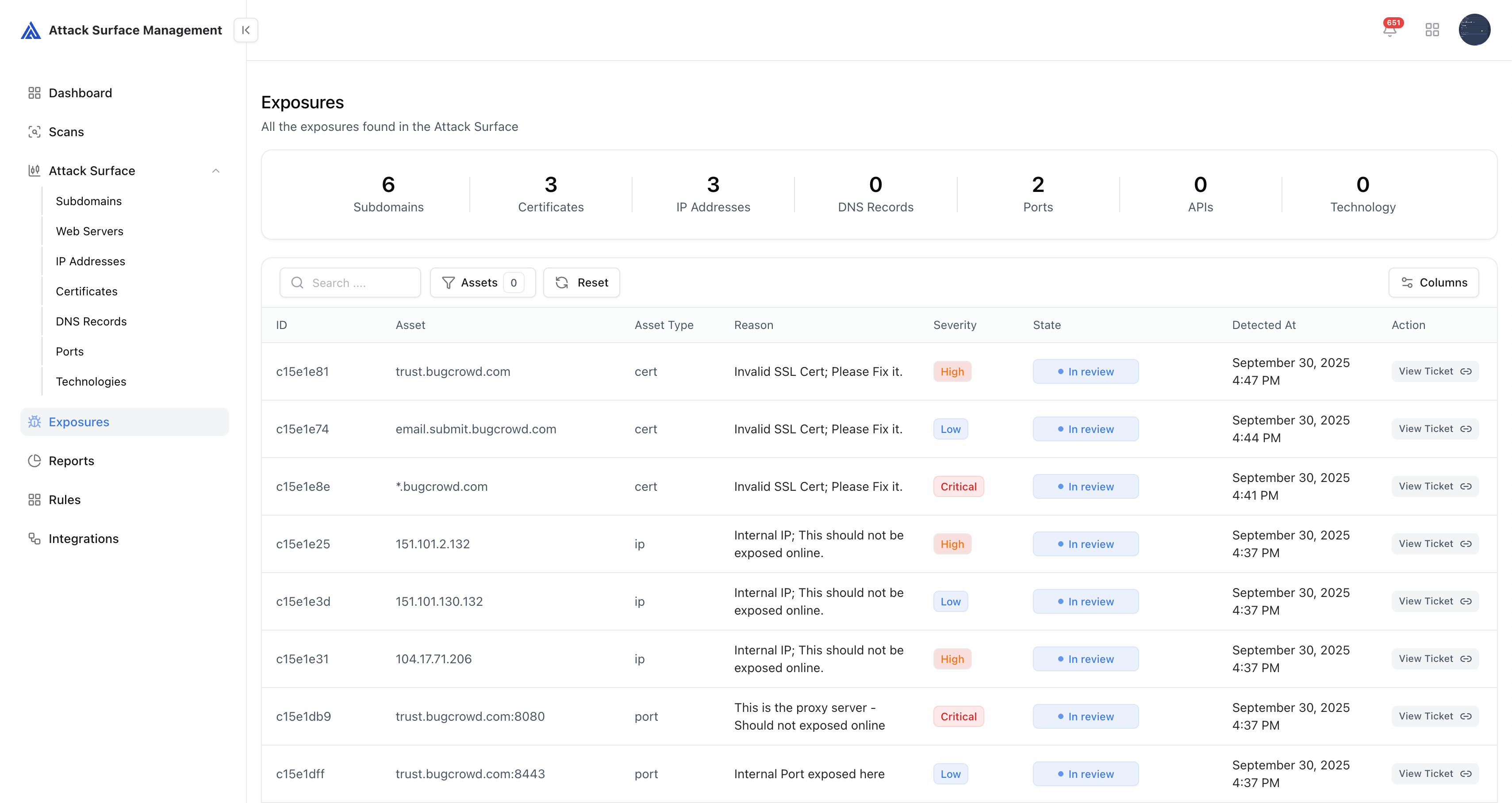
The **Exposures page** provides a unified view of all issues identified by your exposure rules — covering subdomains, IPs, ports, DNS records, certificates, APIs, and technologies.\
Every exposure is automatically created by your YAML-based detection policies.
 ***
## Overview
Exposures represent **validated risks** automatically derived from your discovered assets.\
Each entry contains:
* **Asset & Type** – The resource impacted (e.g., IP, Subdomain, Certificate)
* **Reason** – Why this asset was flagged (e.g., “Invalid SSL Cert”)
* **Severity** – Criticality defined by your exposure rules or manual review
* **State** – Workflow state (*In Review*, *Safe*, *Resolved*, *Not assigned*)
* **Detected At** – Timestamp of when the exposure was first observed
* **Action** – View, edit, or mark exposure as safe
***
## Key Capabilities
All exposures are **created automatically** by your YAML-based rules during scans.\
Rules define which assets are risky and assign their severity and description.
View all exposures in a structured table with filters by asset type, state, and severity.
Analysts can manually edit the reason or change severity to refine classification accuracy.
False positives can be marked as *Safe* to prevent recurrence in future scans.
***
## Editing Exposures
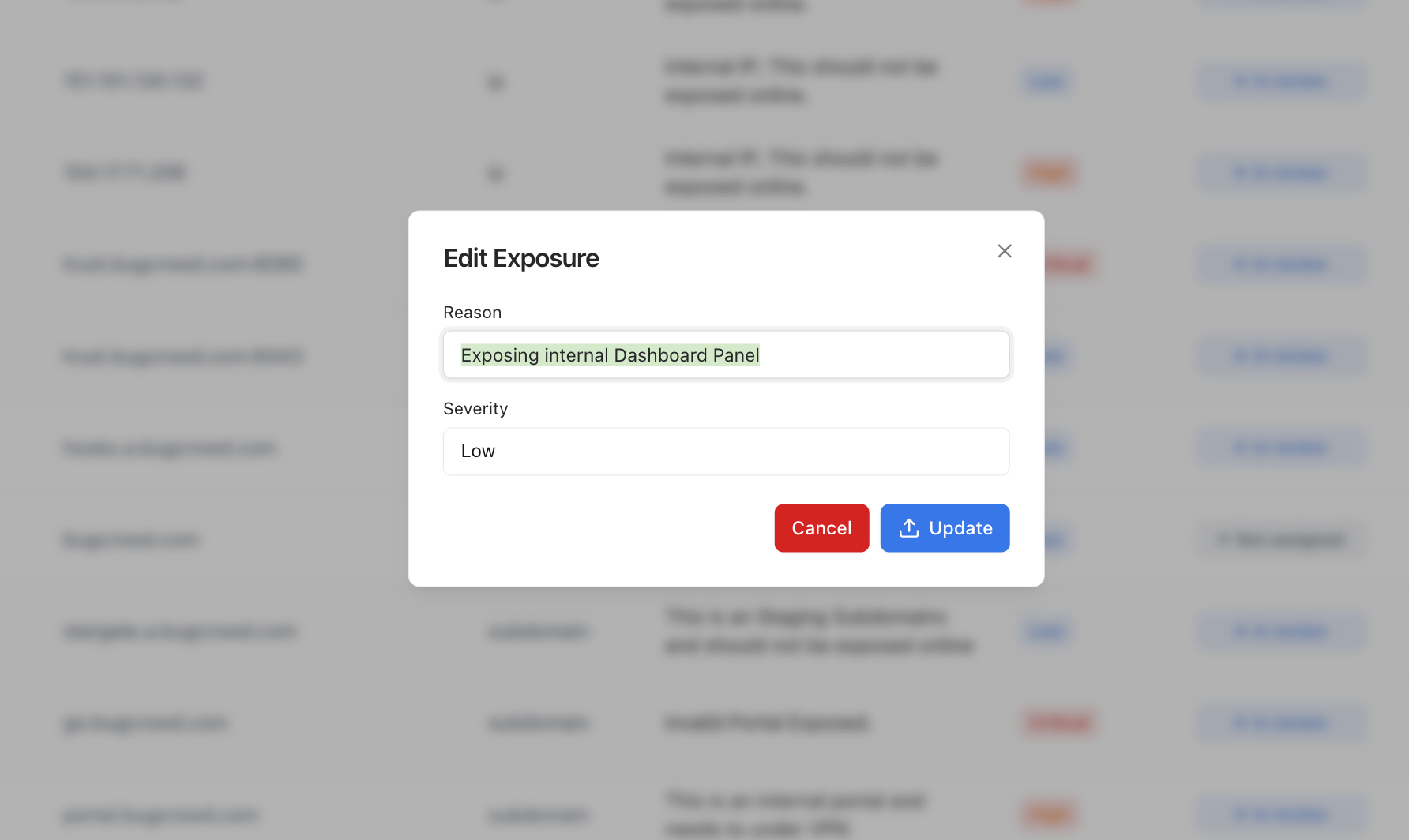
You can **edit** any exposure directly to adjust severity or reason text.
***
## Overview
Exposures represent **validated risks** automatically derived from your discovered assets.\
Each entry contains:
* **Asset & Type** – The resource impacted (e.g., IP, Subdomain, Certificate)
* **Reason** – Why this asset was flagged (e.g., “Invalid SSL Cert”)
* **Severity** – Criticality defined by your exposure rules or manual review
* **State** – Workflow state (*In Review*, *Safe*, *Resolved*, *Not assigned*)
* **Detected At** – Timestamp of when the exposure was first observed
* **Action** – View, edit, or mark exposure as safe
***
## Key Capabilities
All exposures are **created automatically** by your YAML-based rules during scans.\
Rules define which assets are risky and assign their severity and description.
View all exposures in a structured table with filters by asset type, state, and severity.
Analysts can manually edit the reason or change severity to refine classification accuracy.
False positives can be marked as *Safe* to prevent recurrence in future scans.
***
## Editing Exposures
You can **edit** any exposure directly to adjust severity or reason text.
 ### Example Use
* Adjust *Severity* from **Critical → Medium** when risk context is low.
* Update *Reason* to add notes like “Reviewed internally – no sensitive data.”
***
## Example manual review log (stored internally)
* id: c15e1e8e
* asset: "\*.bugcrowd.com"
* reason: "Exposing internal dashboard (non-sensitive)"
* severity: "Low"
* state: "In review"
* reviewed\_by: "[analyst@company.com](mailto:analyst@company.com)"
***
## Explore Live Demo
Instantly explore how Snapsec **Attack Surface Management (ASM)** discovers external assets, identifies exposures, enriches attack surface data, and visualizes risk — all in real time, without creating an account.
### Example Use
* Adjust *Severity* from **Critical → Medium** when risk context is low.
* Update *Reason* to add notes like “Reviewed internally – no sensitive data.”
***
## Example manual review log (stored internally)
* id: c15e1e8e
* asset: "\*.bugcrowd.com"
* reason: "Exposing internal dashboard (non-sensitive)"
* severity: "Low"
* state: "In review"
* reviewed\_by: "[analyst@company.com](mailto:analyst@company.com)"
***
## Explore Live Demo
Instantly explore how Snapsec **Attack Surface Management (ASM)** discovers external assets, identifies exposures, enriches attack surface data, and visualizes risk — all in real time, without creating an account.