> ## Documentation Index
> Fetch the complete documentation index at: https://docs.snapsec.co/llms.txt
> Use this file to discover all available pages before exploring further.
# Triggers
> Automate actions based on asset events to enable continuous security workflows.
## Overview
Triggers allow you to automate actions across your asset inventory based on defined conditions.
They continuously monitor asset changes and automatically execute workflows such as scans or policy enforcement — eliminating manual intervention and improving response time.
***
## Triggers List
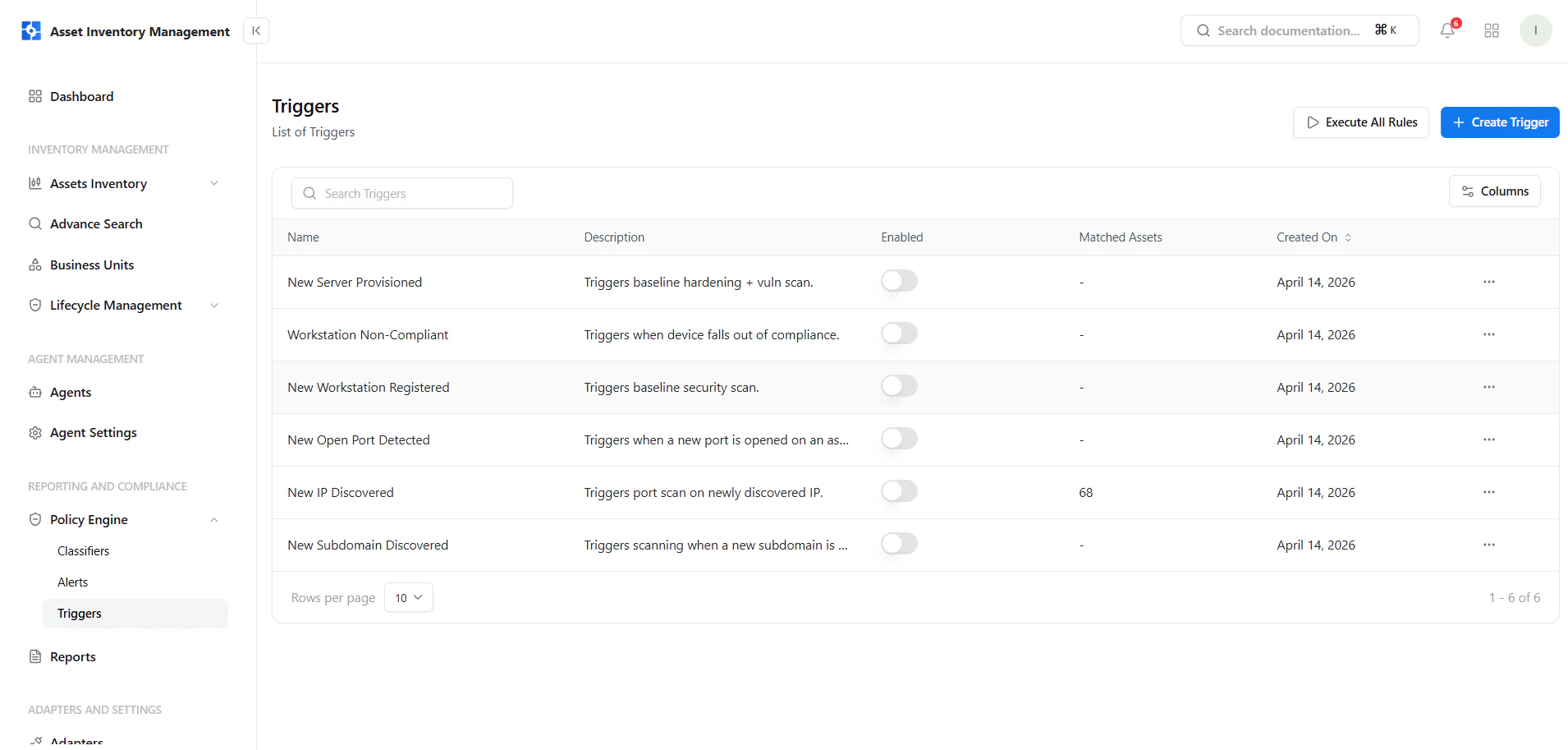 This screen provides a centralized view of all trigger rules.
### Key Elements
* **Name & Description** — Defines what the trigger does
* **Enabled Toggle** — Activate or disable triggers instantly
* **Matched Assets** — Assets currently matching the condition
* **Created On** — Rule creation timestamp
* **Actions Menu** — Manage trigger execution
***
## Create a Trigger
This screen provides a centralized view of all trigger rules.
### Key Elements
* **Name & Description** — Defines what the trigger does
* **Enabled Toggle** — Activate or disable triggers instantly
* **Matched Assets** — Assets currently matching the condition
* **Created On** — Rule creation timestamp
* **Actions Menu** — Manage trigger execution
***
## Create a Trigger
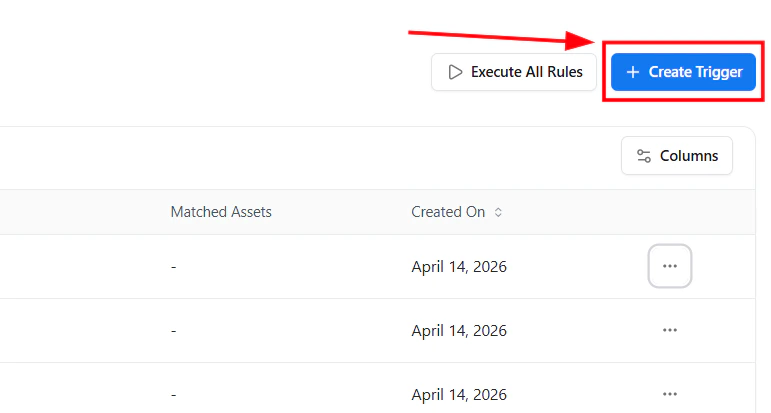 To create a new trigger:
1. Click **Create Trigger**
2. Open the guided policy builder
3. Define conditions and trigger actions
***
## Guided Policy Builder
To create a new trigger:
1. Click **Create Trigger**
2. Open the guided policy builder
3. Define conditions and trigger actions
***
## Guided Policy Builder
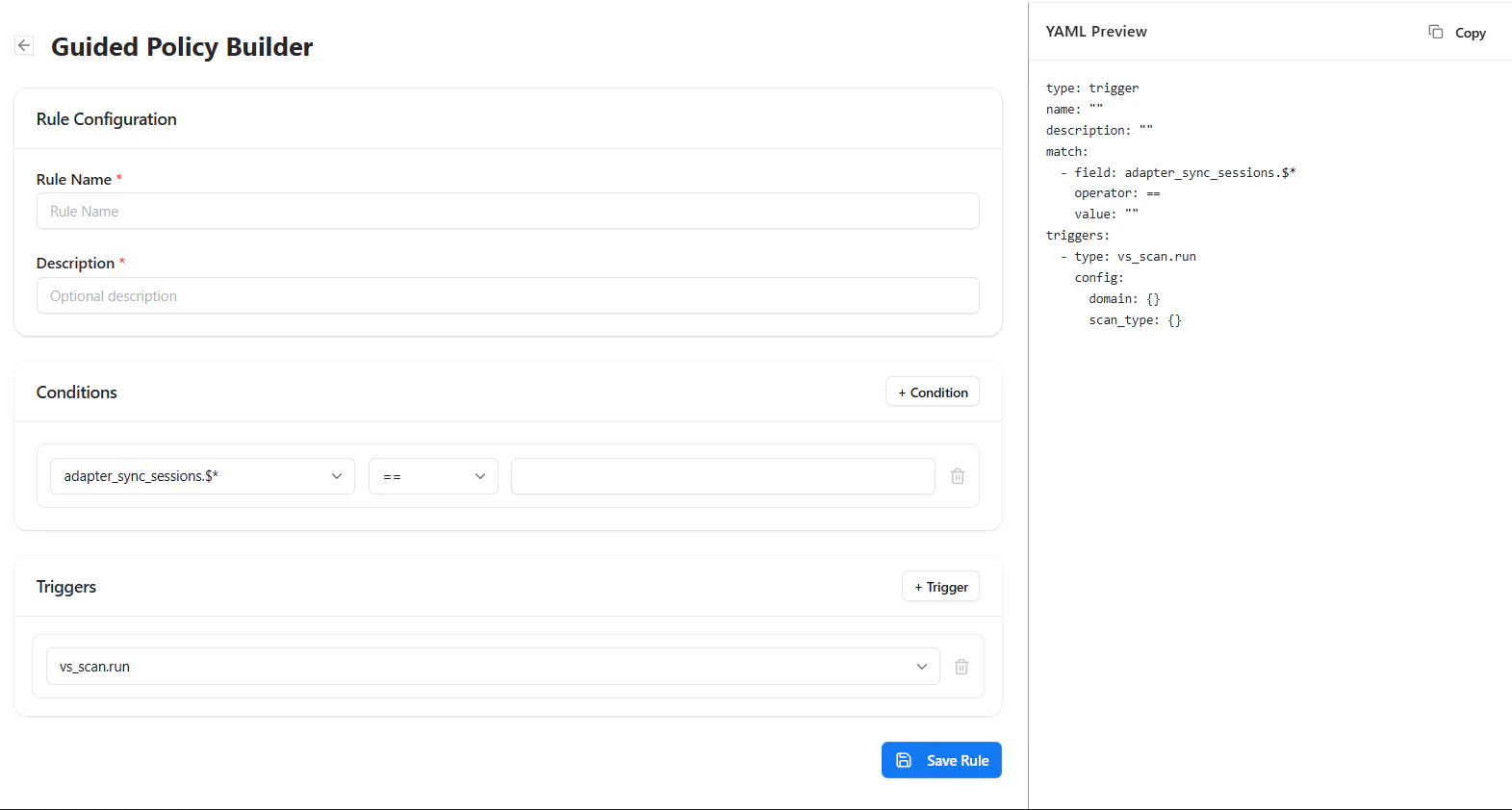 This builder allows you to define when and how automation should occur.
### Rule Configuration
* **Rule Name** — Unique name for the trigger
* **Description** — Optional explanation
### Conditions
Define when the trigger should activate:
* Select a field
* Choose an operator (equals, contains, etc.)
* Provide a value
### Trigger Actions
Define what should happen automatically:
* Run vulnerability scans
* Trigger workflows
* Enforce security policies
***
## Manage Triggers
This builder allows you to define when and how automation should occur.
### Rule Configuration
* **Rule Name** — Unique name for the trigger
* **Description** — Optional explanation
### Conditions
Define when the trigger should activate:
* Select a field
* Choose an operator (equals, contains, etc.)
* Provide a value
### Trigger Actions
Define what should happen automatically:
* Run vulnerability scans
* Trigger workflows
* Enforce security policies
***
## Manage Triggers
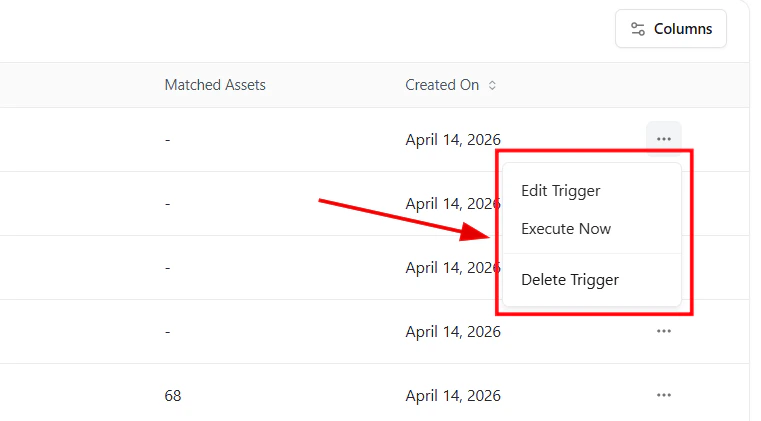 Each trigger supports:
* **Edit Trigger** — Update logic or actions
* **Execute Now** — Run instantly on current assets
* **Delete Trigger** — Remove permanently
***
## Execute All Rules
Use **Execute All Rules** to run all triggers across your assets and enforce automation immediately.
This ensures your automation rules are applied to the latest asset state.
***
## Real-World Examples
* Run scans when a new IP is discovered
* Trigger actions when a new port opens
* Start checks when a device becomes non-compliant
* Automatically scan newly onboarded assets
***
## Why This Matters
* Converts detection into action
* Eliminates manual workflows
* Reduces response time
* Enables continuous security automation
***
## Explore Live Demo
See how Snapsec AIM automatically executes scans and workflows when trigger conditions are met.
Each trigger supports:
* **Edit Trigger** — Update logic or actions
* **Execute Now** — Run instantly on current assets
* **Delete Trigger** — Remove permanently
***
## Execute All Rules
Use **Execute All Rules** to run all triggers across your assets and enforce automation immediately.
This ensures your automation rules are applied to the latest asset state.
***
## Real-World Examples
* Run scans when a new IP is discovered
* Trigger actions when a new port opens
* Start checks when a device becomes non-compliant
* Automatically scan newly onboarded assets
***
## Why This Matters
* Converts detection into action
* Eliminates manual workflows
* Reduces response time
* Enables continuous security automation
***
## Explore Live Demo
See how Snapsec AIM automatically executes scans and workflows when trigger conditions are met.