> ## Documentation Index
> Fetch the complete documentation index at: https://docs.snapsec.co/llms.txt
> Use this file to discover all available pages before exploring further.
# Reports
> Export asset inventory data in multiple formats for reporting, analysis, and integrations.
## Overview
Exports allow you to extract asset inventory data for reporting, compliance, or external analysis.
You can generate full inventory exports or filter exports based on specific asset types, and download them in multiple formats such as CSV, XLSX, or JSON.
***
## Export Options
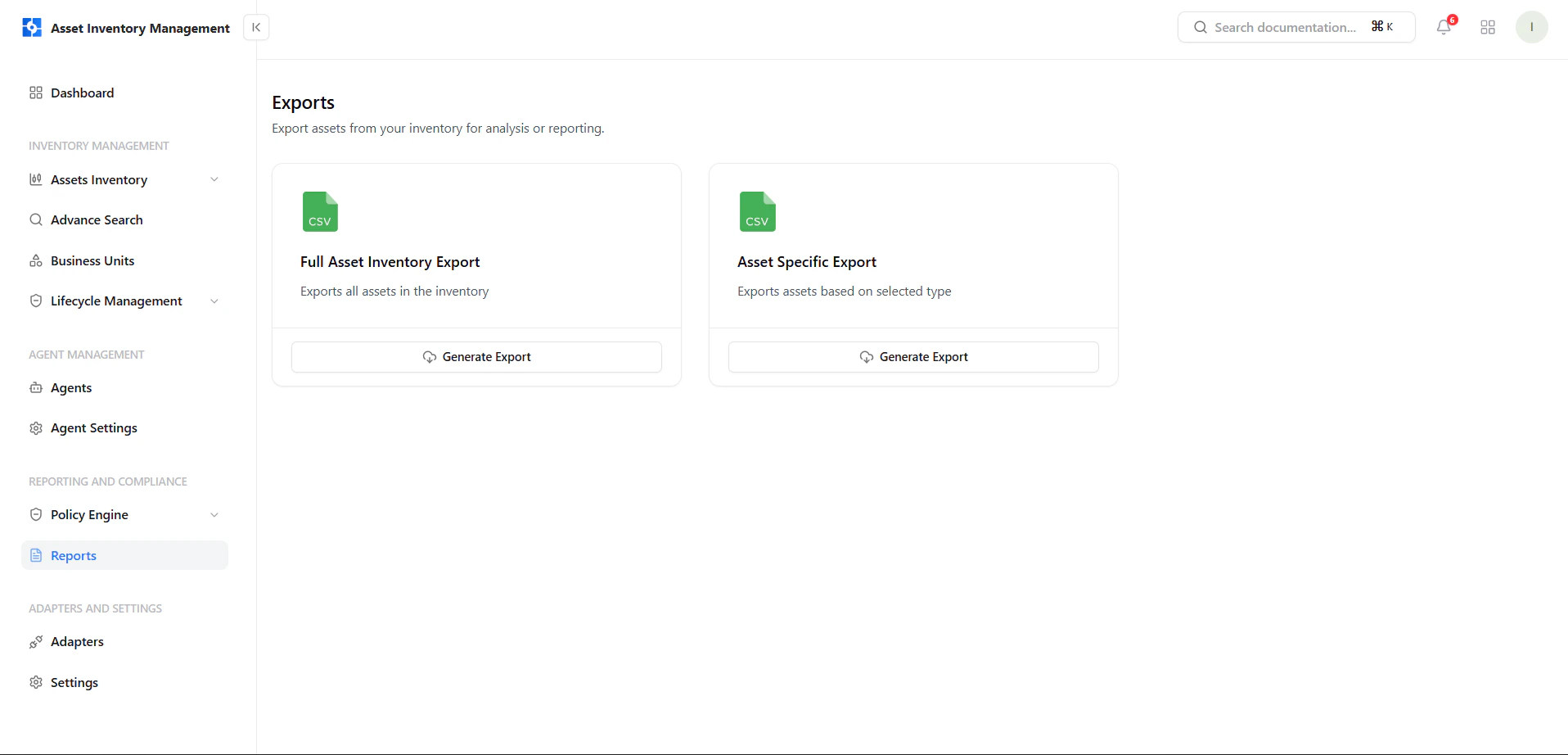 The exports screen provides two primary options:
### Full Asset Inventory Export
* Exports all assets in your inventory
* Ideal for complete reporting and backups
### Asset Specific Export
* Export assets based on selected type
* Useful for targeted analysis
***
## Generate Full Inventory Export
The exports screen provides two primary options:
### Full Asset Inventory Export
* Exports all assets in your inventory
* Ideal for complete reporting and backups
### Asset Specific Export
* Export assets based on selected type
* Useful for targeted analysis
***
## Generate Full Inventory Export
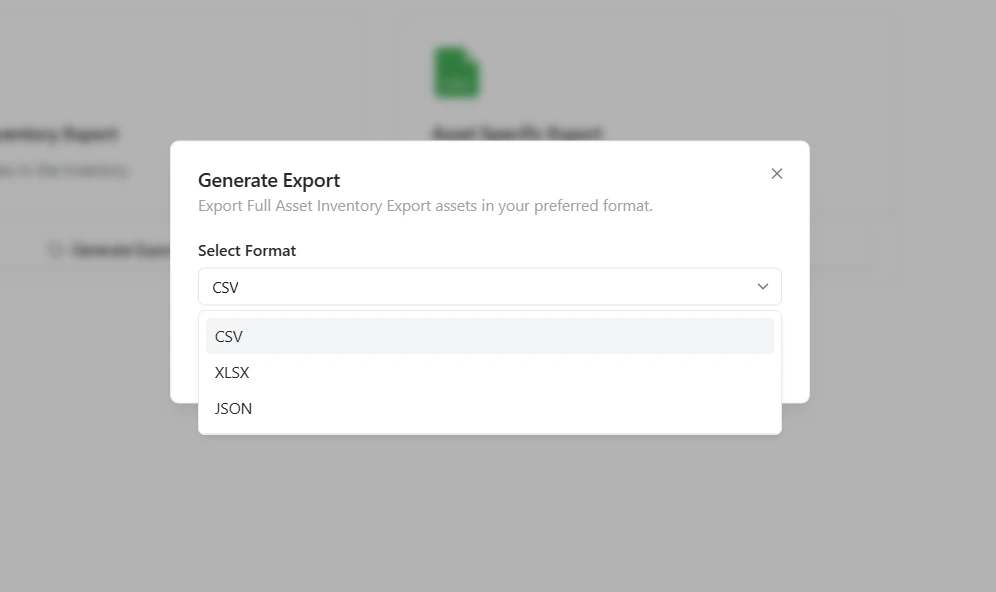 To export the complete inventory:
1. Click **Generate Export** under Full Asset Inventory
2. Select your preferred format:
* CSV
* XLSX
* JSON
3. Confirm to generate the export
***
## Generate Asset-Specific Export
To export the complete inventory:
1. Click **Generate Export** under Full Asset Inventory
2. Select your preferred format:
* CSV
* XLSX
* JSON
3. Confirm to generate the export
***
## Generate Asset-Specific Export
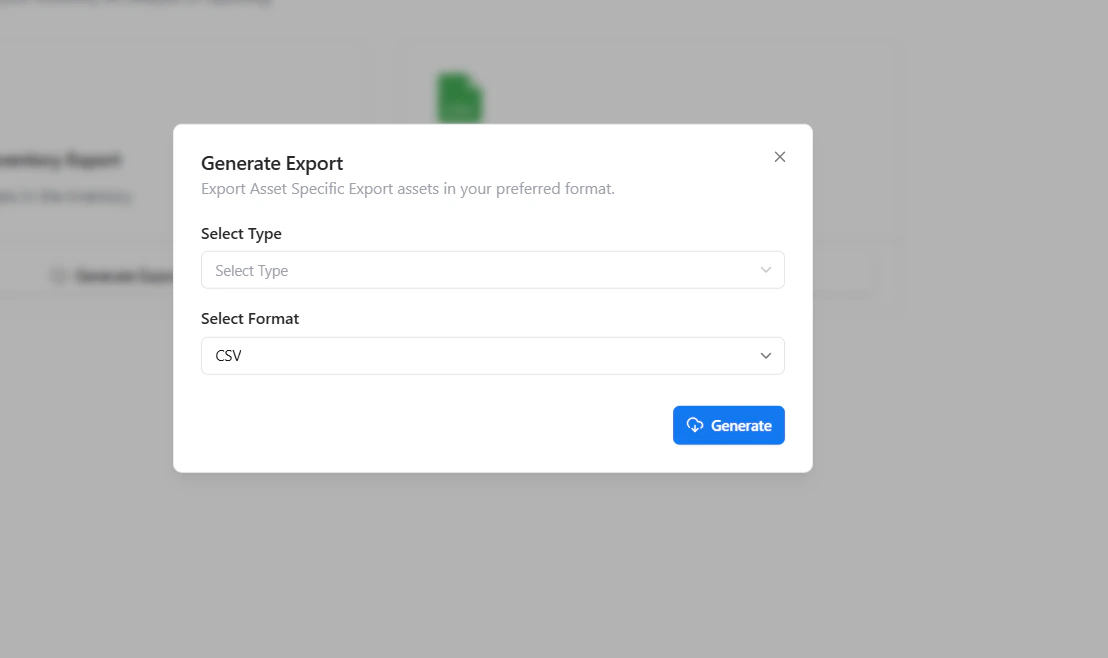 To export specific assets:
1. Click **Generate Export** under Asset Specific Export
2. Select the asset type
3. Choose the export format
4. Click **Generate**
***
## Supported Formats
Exports are available in multiple formats to support different use cases:
* **CSV** — Lightweight and widely compatible
* **XLSX** — Structured and ideal for spreadsheets
* **JSON** — Best for integrations and automation
***
## Why This Matters
* Enables easy reporting and compliance tracking
* Supports external analysis and integrations
* Provides flexible data extraction
* Simplifies audit and documentation workflows
***
## Explore Live Demo
See how Snapsec AIM allows you to export asset data in multiple formats for reporting and analysis.
To export specific assets:
1. Click **Generate Export** under Asset Specific Export
2. Select the asset type
3. Choose the export format
4. Click **Generate**
***
## Supported Formats
Exports are available in multiple formats to support different use cases:
* **CSV** — Lightweight and widely compatible
* **XLSX** — Structured and ideal for spreadsheets
* **JSON** — Best for integrations and automation
***
## Why This Matters
* Enables easy reporting and compliance tracking
* Supports external analysis and integrations
* Provides flexible data extraction
* Simplifies audit and documentation workflows
***
## Explore Live Demo
See how Snapsec AIM allows you to export asset data in multiple formats for reporting and analysis.