> ## Documentation Index
> Fetch the complete documentation index at: https://docs.snapsec.co/llms.txt
> Use this file to discover all available pages before exploring further.
# Agent Settings
> Configure, install, and manage agents across different operating systems to ensure continuous asset data ingestion.
## Overview
The **Agent Settings** module allows you to install, configure, and manage agents across multiple operating systems.
Agents are responsible for collecting asset data and sending it to the platform in real time. This section provides installation commands, prerequisites, and operational controls for managing agents efficiently.
***
## Installation (Linux)
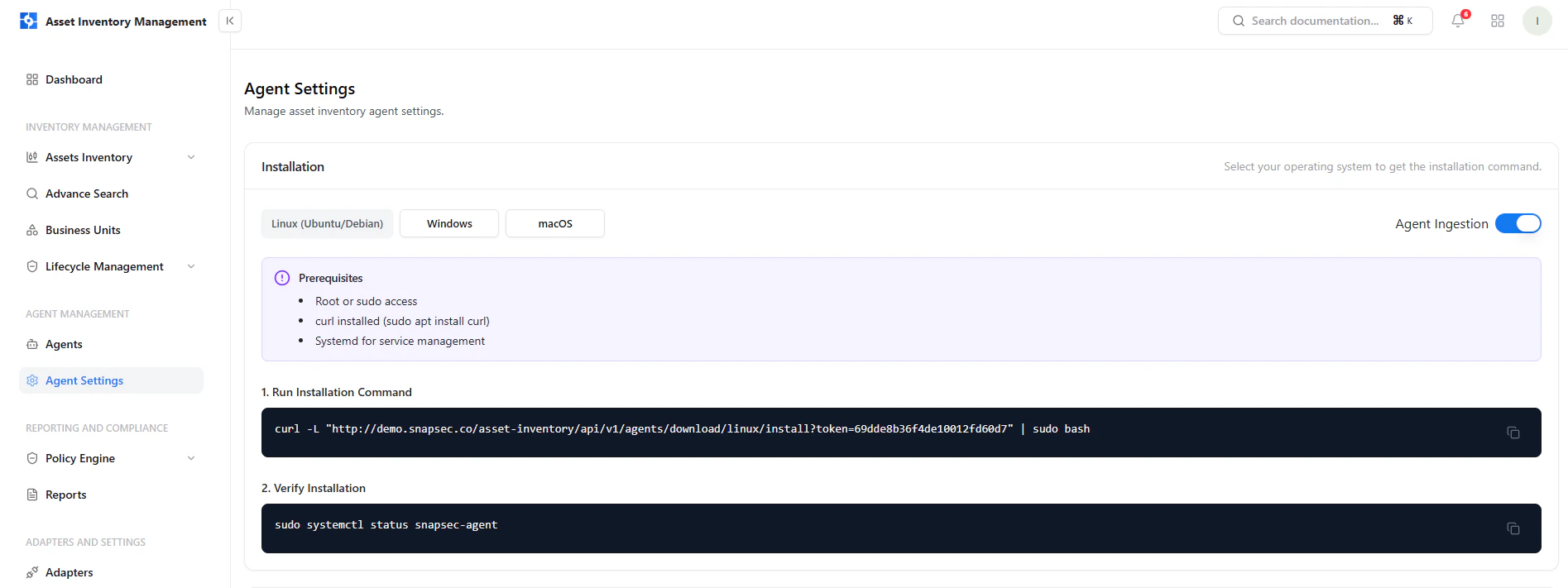 ### Prerequisites
* Root or sudo access
* `curl` installed
* Systemd for service management
### Steps
1. Run the installation command
2. Verify installation using systemctl
***
## Agent Management (Linux)
### Prerequisites
* Root or sudo access
* `curl` installed
* Systemd for service management
### Steps
1. Run the installation command
2. Verify installation using systemctl
***
## Agent Management (Linux)
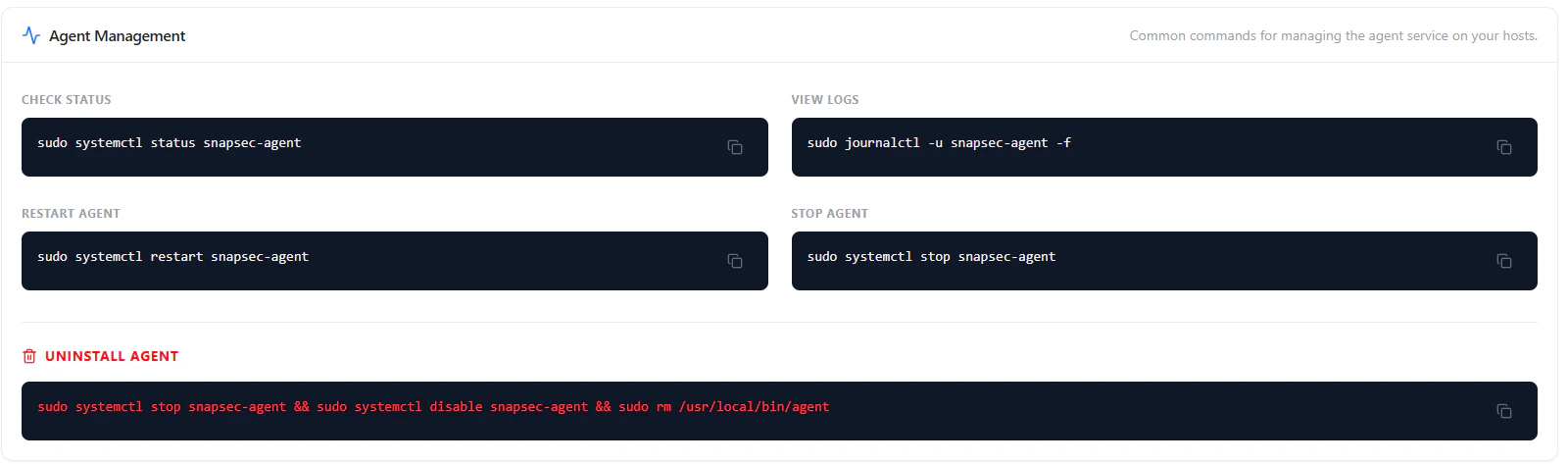 ### Available Commands
* **Check Status** — Verify if the agent is running
* **View Logs** — Monitor real-time logs
* **Restart Agent** — Restart the service
* **Stop Agent** — Stop agent execution
* **Uninstall Agent** — Remove agent and disable service
***
## Installation (Windows)
### Available Commands
* **Check Status** — Verify if the agent is running
* **View Logs** — Monitor real-time logs
* **Restart Agent** — Restart the service
* **Stop Agent** — Stop agent execution
* **Uninstall Agent** — Remove agent and disable service
***
## Installation (Windows)
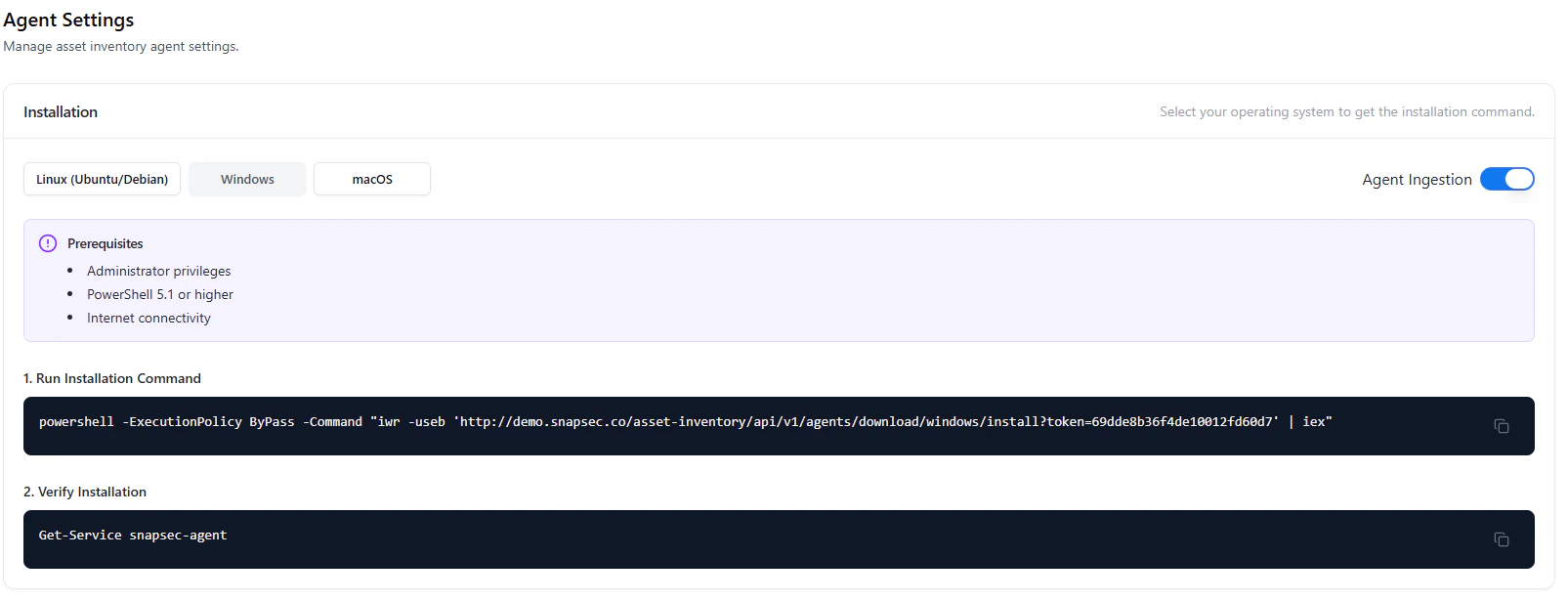 ### Prerequisites
* Administrator privileges
* PowerShell 5.1 or higher
* Internet connectivity
### Steps
1. Execute PowerShell installation command
2. Verify using Windows service check
***
## Agent Management (Windows)
### Prerequisites
* Administrator privileges
* PowerShell 5.1 or higher
* Internet connectivity
### Steps
1. Execute PowerShell installation command
2. Verify using Windows service check
***
## Agent Management (Windows)
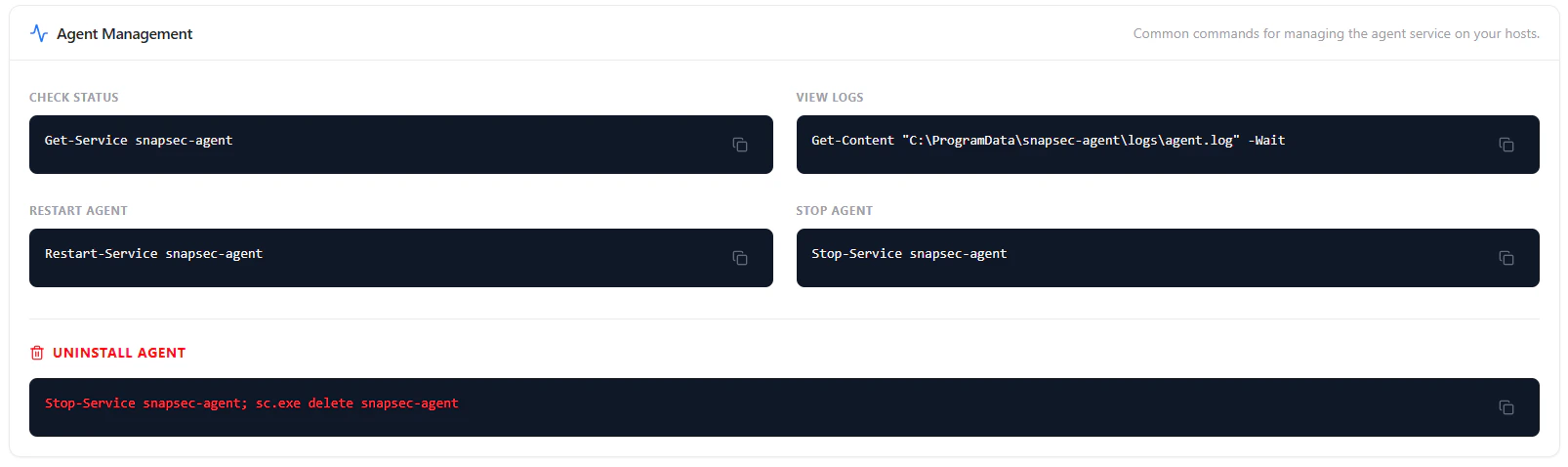 ### Available Commands
* **Check Status** — Get-Service
* **View Logs** — Read agent log file
* **Restart Agent** — Restart-Service
* **Stop Agent** — Stop-Service
* **Uninstall Agent** — Remove service completely
***
## Installation (macOS)
### Available Commands
* **Check Status** — Get-Service
* **View Logs** — Read agent log file
* **Restart Agent** — Restart-Service
* **Stop Agent** — Stop-Service
* **Uninstall Agent** — Remove service completely
***
## Installation (macOS)
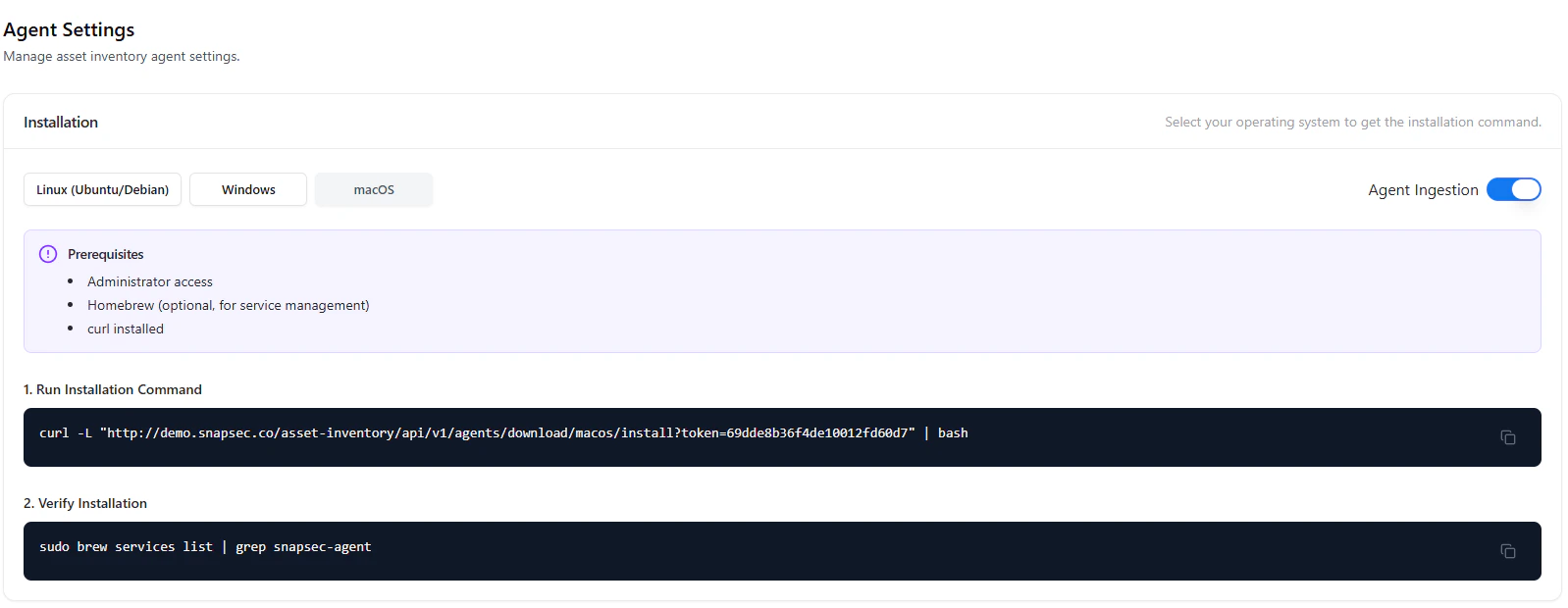 ### Prerequisites
* Administrator access
* Homebrew (optional for service management)
* curl installed
### Steps
1. Run installation script via terminal
2. Verify using brew services
***
## Agent Management (macOS)
### Prerequisites
* Administrator access
* Homebrew (optional for service management)
* curl installed
### Steps
1. Run installation script via terminal
2. Verify using brew services
***
## Agent Management (macOS)
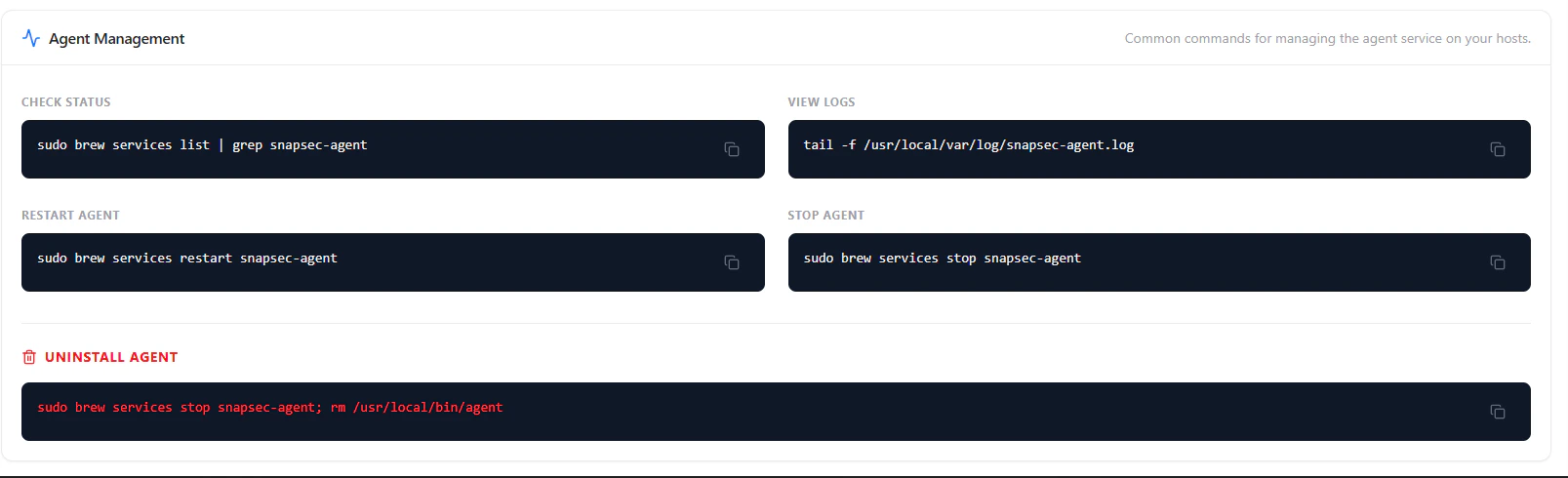 ### Available Commands
* **Check Status** — Verify via brew services
* **View Logs** — Tail log files
* **Restart Agent** — Restart service
* **Stop Agent** — Stop service
* **Uninstall Agent** — Remove binary and service
***
## Agent Ingestion Control
Agent ingestion can be toggled directly from the interface.
* **Enabled** — Agents actively send data
* **Disabled** — Data collection is paused
This allows controlled ingestion during maintenance or troubleshooting.
***
## Why This Matters
* Ensures continuous asset visibility across environments
* Standardizes agent deployment across OS platforms
* Simplifies troubleshooting using built-in commands
* Provides full lifecycle control of agents
***
## Explore Live Demo
Experience how Snapsec AIM enables seamless agent deployment, real-time monitoring, and cross-platform management from a single interface.
### Available Commands
* **Check Status** — Verify via brew services
* **View Logs** — Tail log files
* **Restart Agent** — Restart service
* **Stop Agent** — Stop service
* **Uninstall Agent** — Remove binary and service
***
## Agent Ingestion Control
Agent ingestion can be toggled directly from the interface.
* **Enabled** — Agents actively send data
* **Disabled** — Data collection is paused
This allows controlled ingestion during maintenance or troubleshooting.
***
## Why This Matters
* Ensures continuous asset visibility across environments
* Standardizes agent deployment across OS platforms
* Simplifies troubleshooting using built-in commands
* Provides full lifecycle control of agents
***
## Explore Live Demo
Experience how Snapsec AIM enables seamless agent deployment, real-time monitoring, and cross-platform management from a single interface.