> ## Documentation Index
> Fetch the complete documentation index at: https://docs.snapsec.co/llms.txt
> Use this file to discover all available pages before exploring further.
# Teams
> Create, organize, and manage teams within departments to control access, ownership, and collaboration across your organization.
 ## Overview
The **Teams** module allows organizations to group users into functional units within departments.\
Teams help define **ownership**, **responsibility**, and **access boundaries** across products, assessments, and workflows.
Each team belongs to a department and can have a designated **team lead**, multiple members, and a clear scope of responsibility.
***
## Teams List
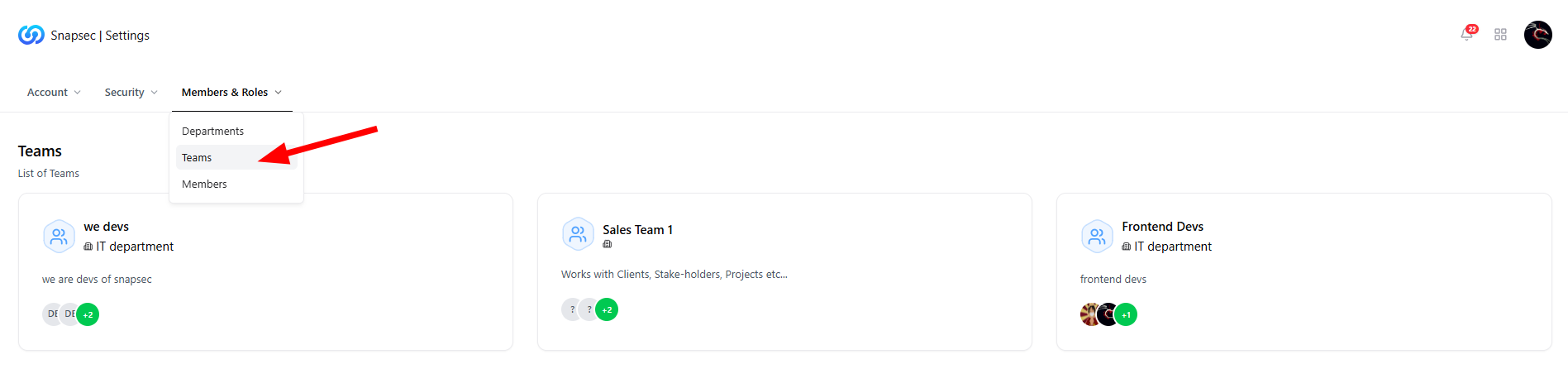
The Teams page displays all teams configured in the organization, along with their department association and member visibility.
Each team card shows:
* **Team name**
* **Parent department**
* **Short description**
* **Member avatars and count**
This view gives administrators a quick snapshot of how users are organized across the organization.
***
## Teams — FAQs
## Overview
The **Teams** module allows organizations to group users into functional units within departments.\
Teams help define **ownership**, **responsibility**, and **access boundaries** across products, assessments, and workflows.
Each team belongs to a department and can have a designated **team lead**, multiple members, and a clear scope of responsibility.
***
## Teams List
The Teams page displays all teams configured in the organization, along with their department association and member visibility.
Each team card shows:
* **Team name**
* **Parent department**
* **Short description**
* **Member avatars and count**
This view gives administrators a quick snapshot of how users are organized across the organization.
***
## Teams — FAQs
 ### Common Questions
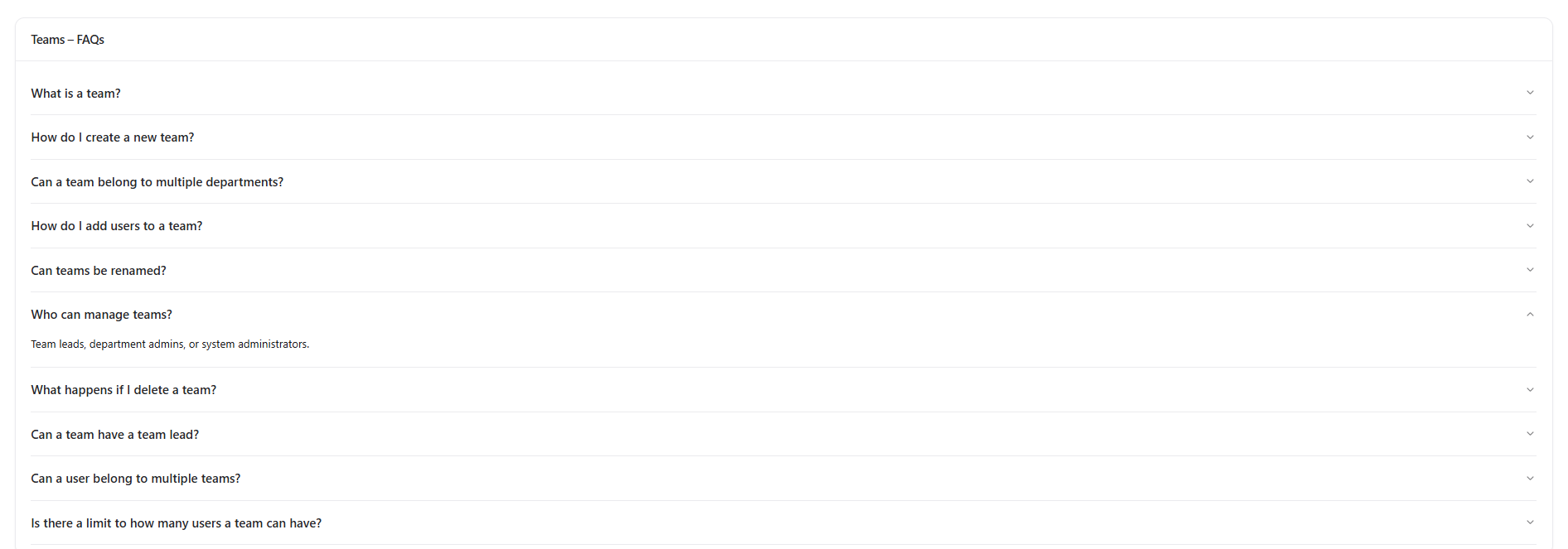
* **What is a team?**\
A team is a group of users working together under a department with shared responsibilities.
* **How do I create a new team?**\
Teams are created within a department by authorized administrators or department leads.
* **Can a team belong to multiple departments?**\
No. Each team is associated with a single department to maintain clear ownership.
* **Who can manage teams?**\
Team Leads, Department Admins, and System Administrators.
* **Can users belong to multiple teams?**\
Yes. A user can be part of multiple teams if required.
***
## Viewing a Team
### Common Questions
* **What is a team?**\
A team is a group of users working together under a department with shared responsibilities.
* **How do I create a new team?**\
Teams are created within a department by authorized administrators or department leads.
* **Can a team belong to multiple departments?**\
No. Each team is associated with a single department to maintain clear ownership.
* **Who can manage teams?**\
Team Leads, Department Admins, and System Administrators.
* **Can users belong to multiple teams?**\
Yes. A user can be part of multiple teams if required.
***
## Viewing a Team
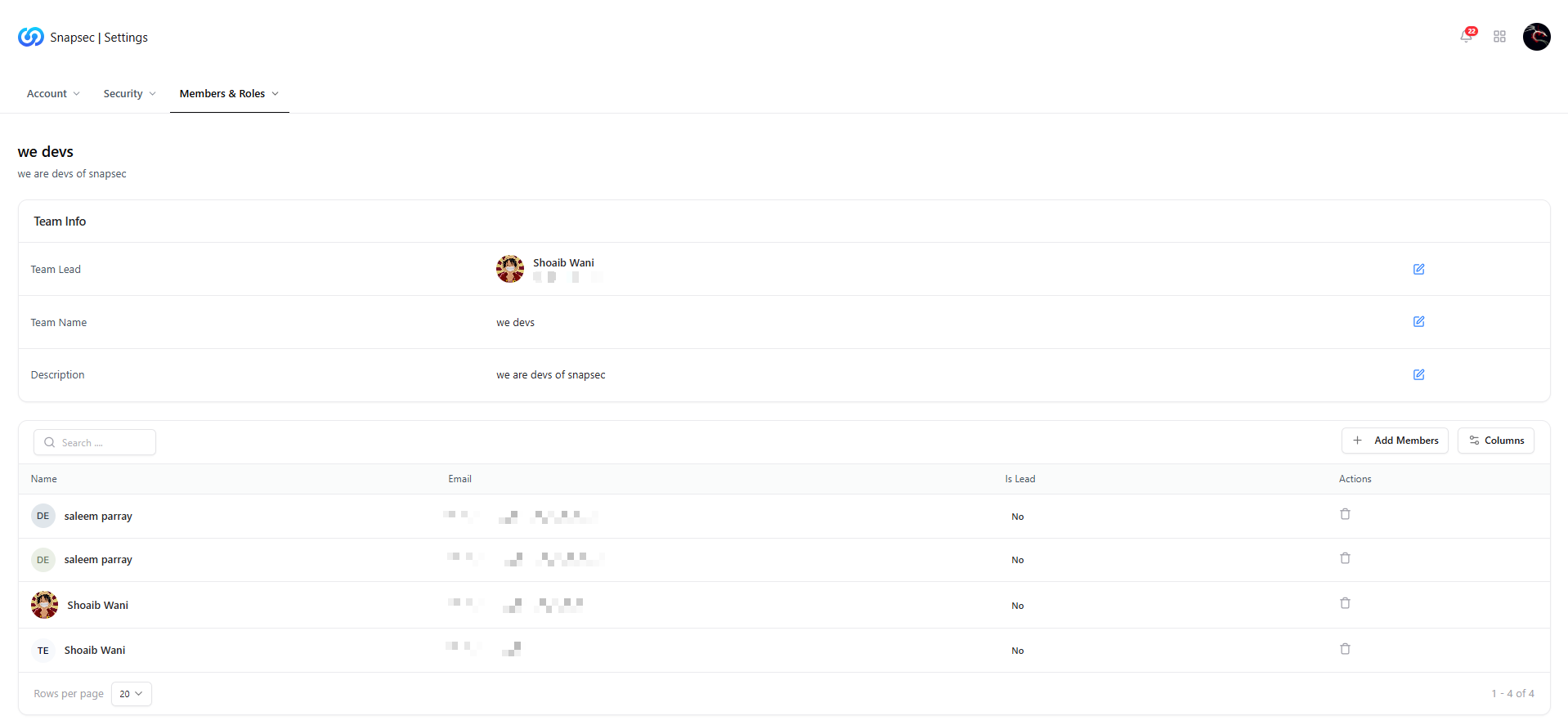 Clicking on a team opens the **Team Details** page.
### Team Info Section
This section provides editable metadata about the team:
* **Team Lead** — The primary owner of the team
* **Team Name** — Display name used across the platform
* **Description** — Explains the team’s role or responsibility
These fields help define accountability and ownership across workflows.
***
## Team Members
Below the Team Info section is the **Members Table**, listing all users assigned to the team.
Each row displays:
* **Member name**
* **Email address**
* **Lead status**
* **Actions** (remove member)
The table supports search, pagination, and column controls for easier management.
***
## Adding Members to a Team
Clicking on a team opens the **Team Details** page.
### Team Info Section
This section provides editable metadata about the team:
* **Team Lead** — The primary owner of the team
* **Team Name** — Display name used across the platform
* **Description** — Explains the team’s role or responsibility
These fields help define accountability and ownership across workflows.
***
## Team Members
Below the Team Info section is the **Members Table**, listing all users assigned to the team.
Each row displays:
* **Member name**
* **Email address**
* **Lead status**
* **Actions** (remove member)
The table supports search, pagination, and column controls for easier management.
***
## Adding Members to a Team
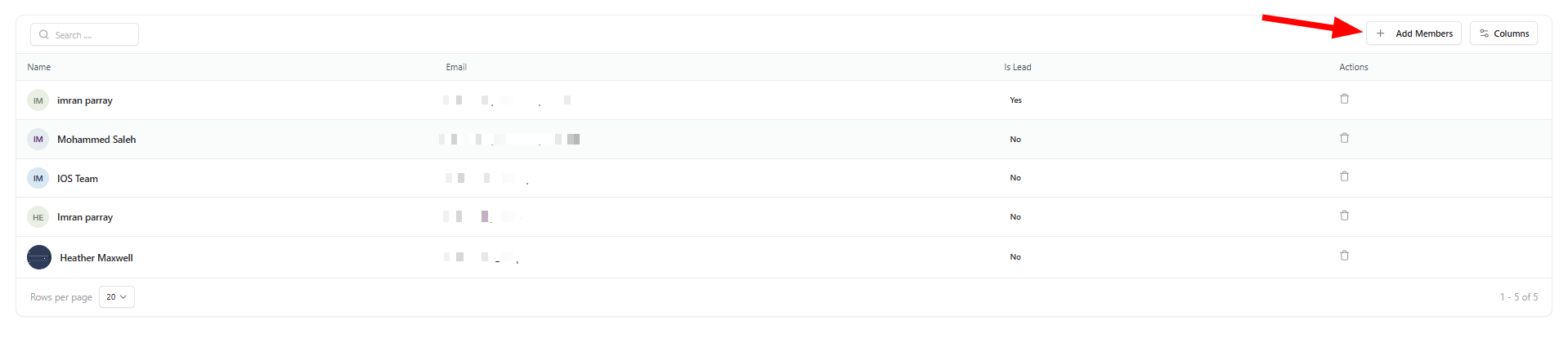 Use the **Add Members** button to assign new users to the team.
* You can add multiple users at once
* Members immediately inherit team-level access and visibility
* Changes apply across all linked products and workflows
***
## Update Team Members
Use the **Add Members** button to assign new users to the team.
* You can add multiple users at once
* Members immediately inherit team-level access and visibility
* Changes apply across all linked products and workflows
***
## Update Team Members
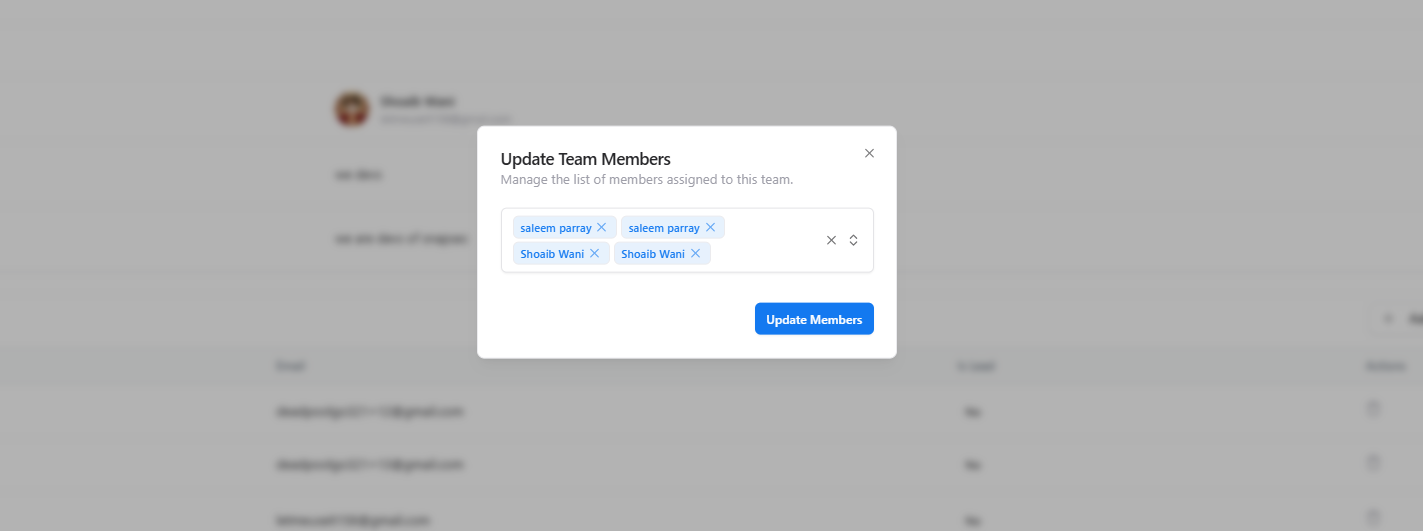 The **Update Team Members** modal allows you to:
* Add or remove users using a searchable multi-select
* Review current assignments before saving
* Apply changes instantly across the system
This modal ensures fast, controlled updates without navigating away from the team view.
***
## Why This Matters
Teams form the foundation of **access control**, **ownership**, and **collaboration** in Snapsec.
By organizing users into teams, organizations can:
* Assign responsibility clearly
* Control access at scale
* Align security workflows with real-world team structures
* Maintain clean audit trails and accountability
***
## Explore Live Demo
Jump straight into the live environment and see how Snapsec manages teams, departments, and access — all from a single control plane.
The **Update Team Members** modal allows you to:
* Add or remove users using a searchable multi-select
* Review current assignments before saving
* Apply changes instantly across the system
This modal ensures fast, controlled updates without navigating away from the team view.
***
## Why This Matters
Teams form the foundation of **access control**, **ownership**, and **collaboration** in Snapsec.
By organizing users into teams, organizations can:
* Assign responsibility clearly
* Control access at scale
* Align security workflows with real-world team structures
* Maintain clean audit trails and accountability
***
## Explore Live Demo
Jump straight into the live environment and see how Snapsec manages teams, departments, and access — all from a single control plane.