> ## Documentation Index
> Fetch the complete documentation index at: https://docs.snapsec.co/llms.txt
> Use this file to discover all available pages before exploring further.
# Integration
> Learn how to connect Snapsec Suite with IBM QRadar to stream security and audit events in real time.
## What is QRadar Integration
The **QRadar Integration** allows Snapsec Suite to send all system-generated security and audit events directly to **IBM QRadar SIEM**.
Once connected, QRadar can ingest Snapsec events for:
* Centralized logging
* Correlation with other security signals
* Threat detection and investigations
* Compliance and audit visibility
This integration helps security teams gain **real-time visibility** into activities happening across the Snapsec platform from within their existing SIEM workflows.
***
## What Events Does Snapsec Send
Snapsec sends **all system events** to QRadar, including but not limited to:
* User management events (create, update, delete)
* Authentication and authorization actions
* Asset changes
* Vulnerability lifecycle events
* Configuration changes
* Integration and automation activities
* Administrative and audit actions
All events are transmitted in a **structured, consistent schema** to ensure reliable parsing and correlation inside QRadar.
***
## Event Schema
Snapsec sends events in JSON format using the following schema:
```json theme={null}
{
"type": "audit",
"action": "create_user",
"request": {
"url": "/v1/users",
"params": {},
"query": {},
"headers": {
"user-agent": "curl/8.0.1"
}
},
"response": {
"body": {
"id": "u_123",
"status": "created"
},
"headers": {
"content-type": "application/json"
}
},
"metadata": {
"ip": "203.0.113.10",
"userId": "admin_1",
"traceId": "abc-xyz"
},
"timestamp": "2026-01-27T10:15:30.000Z"
}
```
### Field Overview
* **type**\
The category of the event.\
Example: `audit`
* **action**\
The specific action performed within Snapsec.\
Example: `create_user`, `delete_asset`
* **request**\
Details about the API request that triggered the event, including:
* URL
* Parameters
* Query values
* Request headers
* **response**\
The result of the action, including:
* Response body
* Response headers
* **metadata**\
Additional contextual information such as:
* IP address of the actor
* User ID who performed the action
* Trace ID for request correlation
* **timestamp**\
The exact time when the event occurred, formatted in ISO 8601.
## How to Connect Snapsec with QRadar
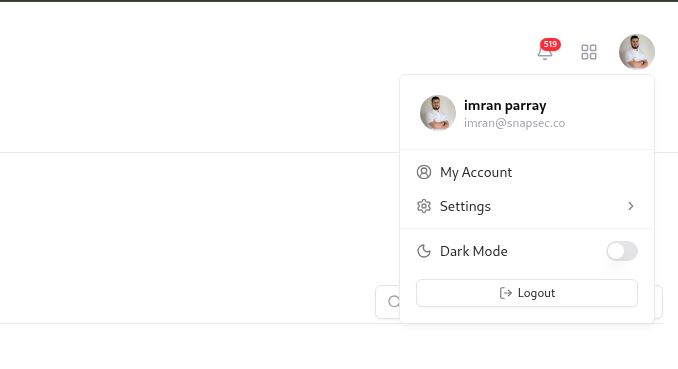
Log in to **Snapsec Suite** and click on your profile icon in the top-right corner.
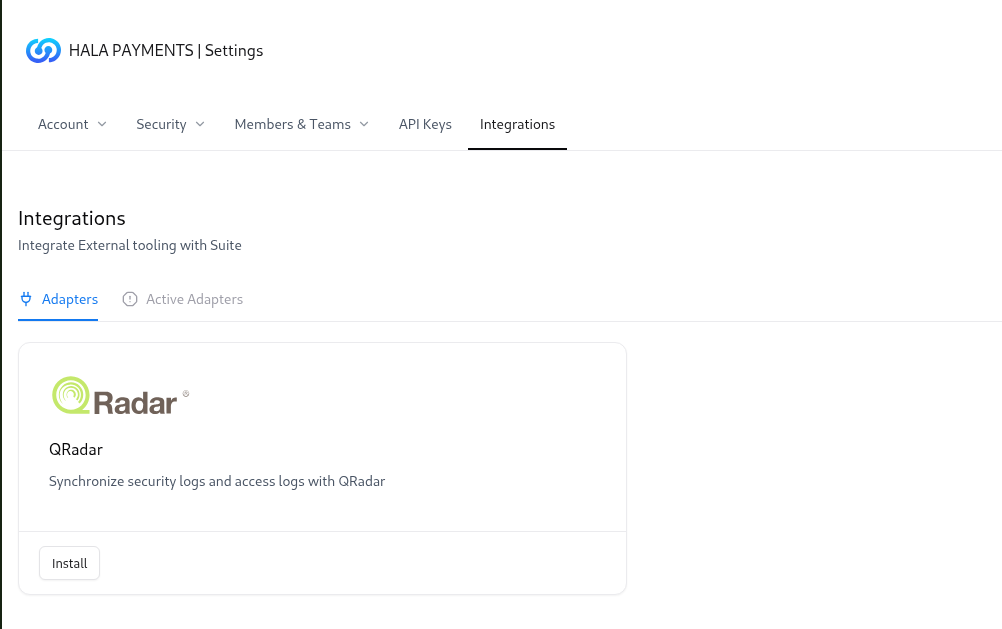
 Select **Integrations** from the settings sidebar.
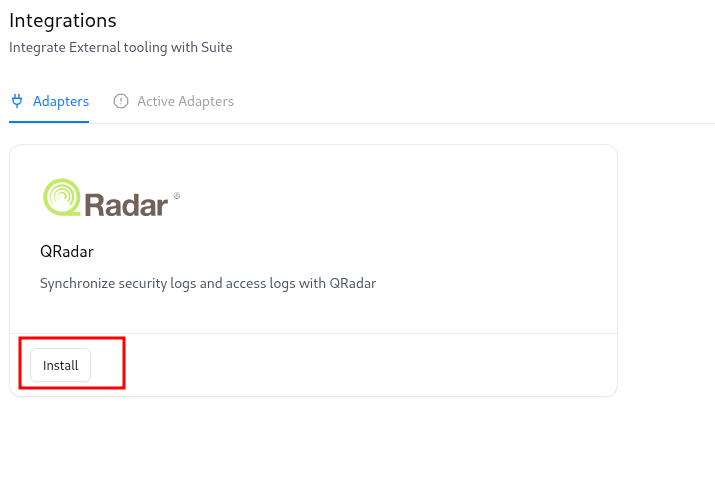
 Locate **QRadar** from the list of available integrations and click on it.
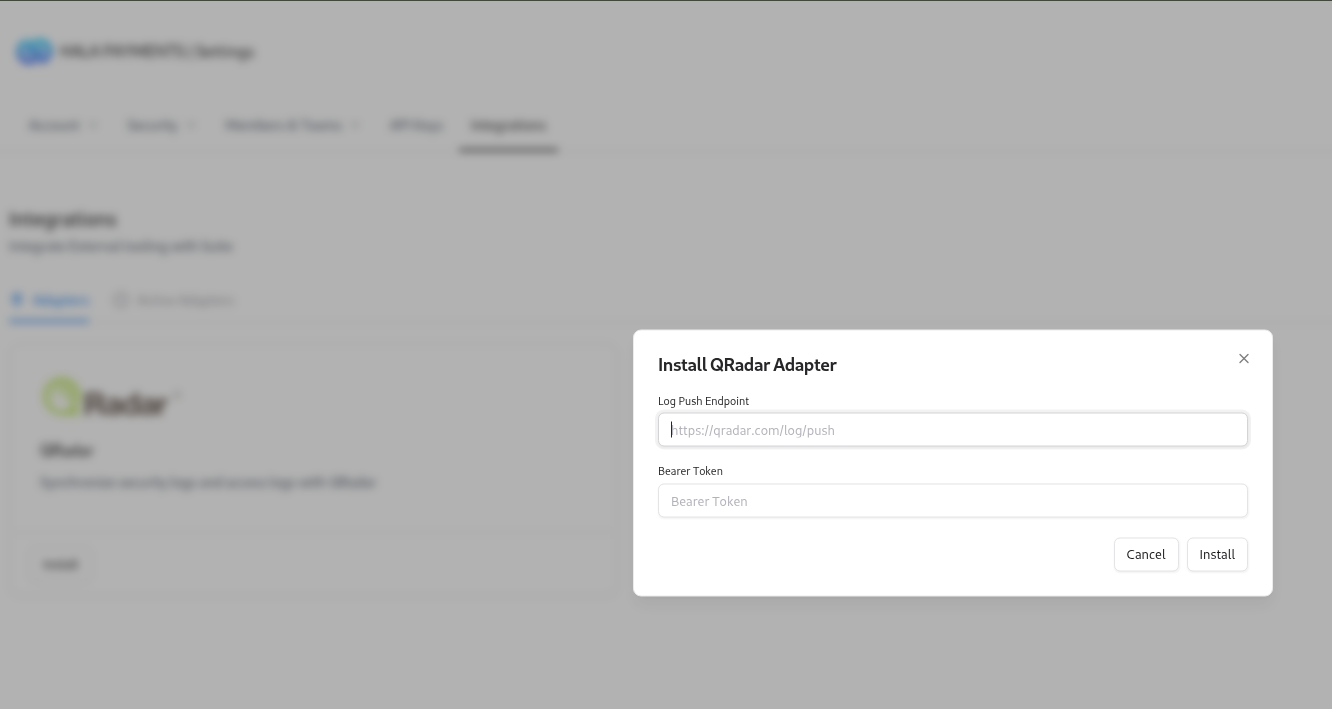
 Provide the following information:
* QRadar URL
* Bearer Token
Provide the following information:
* QRadar URL
* Bearer Token
 Click **Save** to enable the integration.\
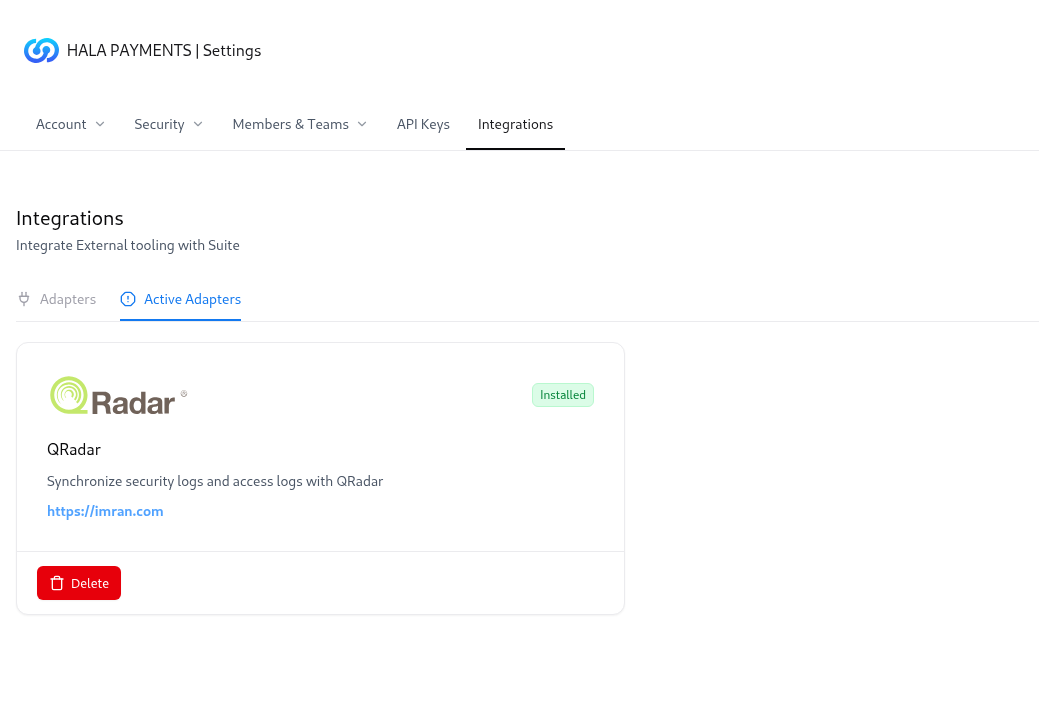
Once completed, QRadar will appear under **Installed Adapters**, confirming the connection.
Click **Save** to enable the integration.\
Once completed, QRadar will appear under **Installed Adapters**, confirming the connection.
 ## Verification
After installation, verify the integration using the following checks:
* Confirm the adapter status is shown as **Installed** in Snapsec.
* Check **QRadar logs** to ensure Snapsec events are being received.
* Verify that events are **parsed and indexed correctly** inside QRadar for search and correlation.
***
## Explore Live Demo
Experience how Snapsec API keys power secure integrations, automation, and scalable security workflows—no signup required.
## Verification
After installation, verify the integration using the following checks:
* Confirm the adapter status is shown as **Installed** in Snapsec.
* Check **QRadar logs** to ensure Snapsec events are being received.
* Verify that events are **parsed and indexed correctly** inside QRadar for search and correlation.
***
## Explore Live Demo
Experience how Snapsec API keys power secure integrations, automation, and scalable security workflows—no signup required.